
Setting up your Praising.ai account correctly helps you collect genuine customer feedback and manage your online reputation. The Settings page lets you customize how customers interact with your review collection process, from the initial review link to the final rating experience.
Step 1: Configure your review link URL
Start by customizing your review collection URL to match your brand. In the Custom URL field, you'll see your unique identifier that customers will use to access your review page.
This custom URL makes it easy to share your review link across different marketing channels while keeping things looking professional.
Step 2: Upload your brand media
Add your logo or brand image to personalize the review experience for your customers. This builds trust and brand recognition during the review process.
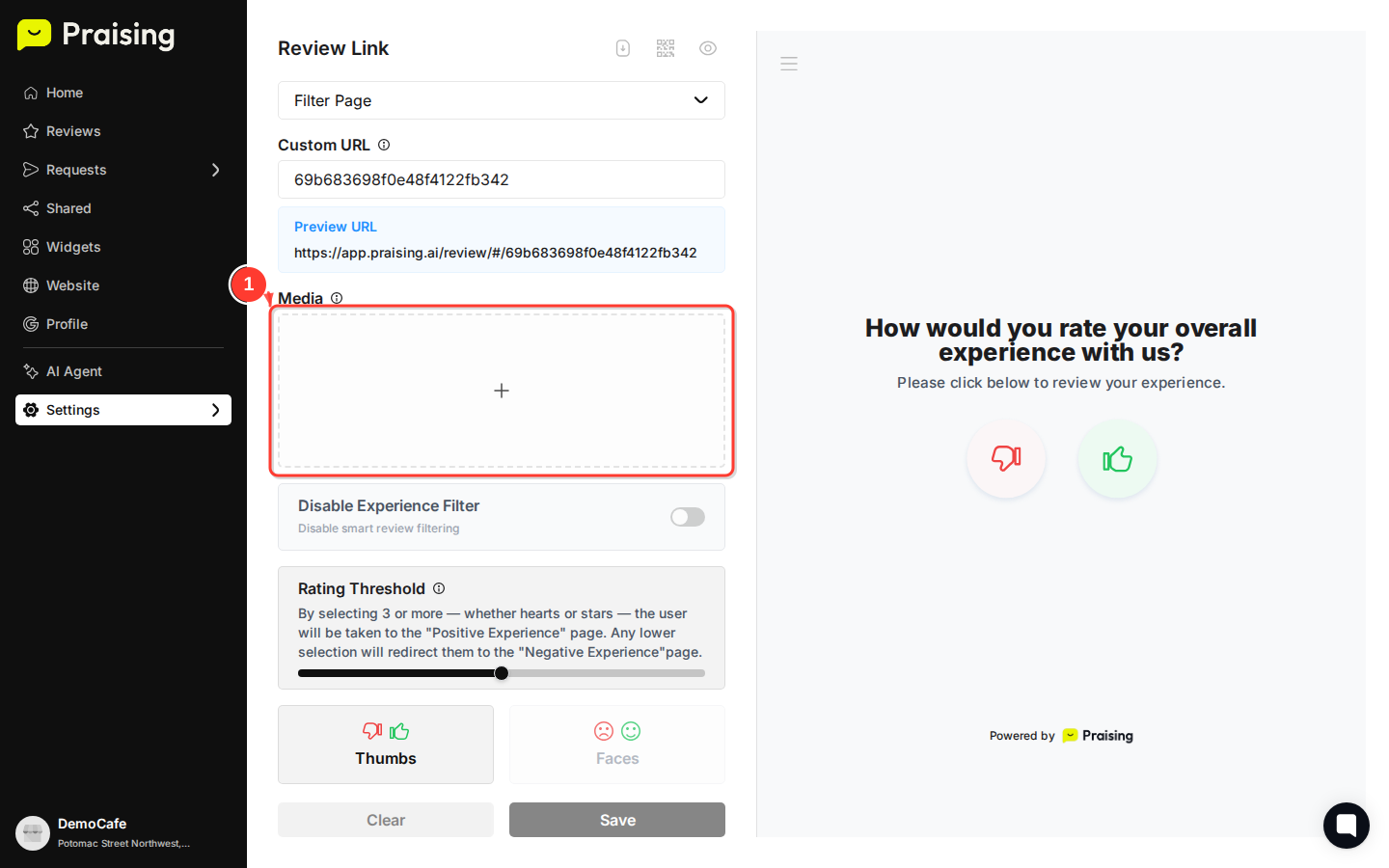
Your uploaded image will appear on the review page, so customers immediately know they're in the right place.
Step 3: Configure the experience filter
The Experience Filter routes customers based on their satisfaction level. You can disable this filtering if you prefer all reviews to follow the same path.
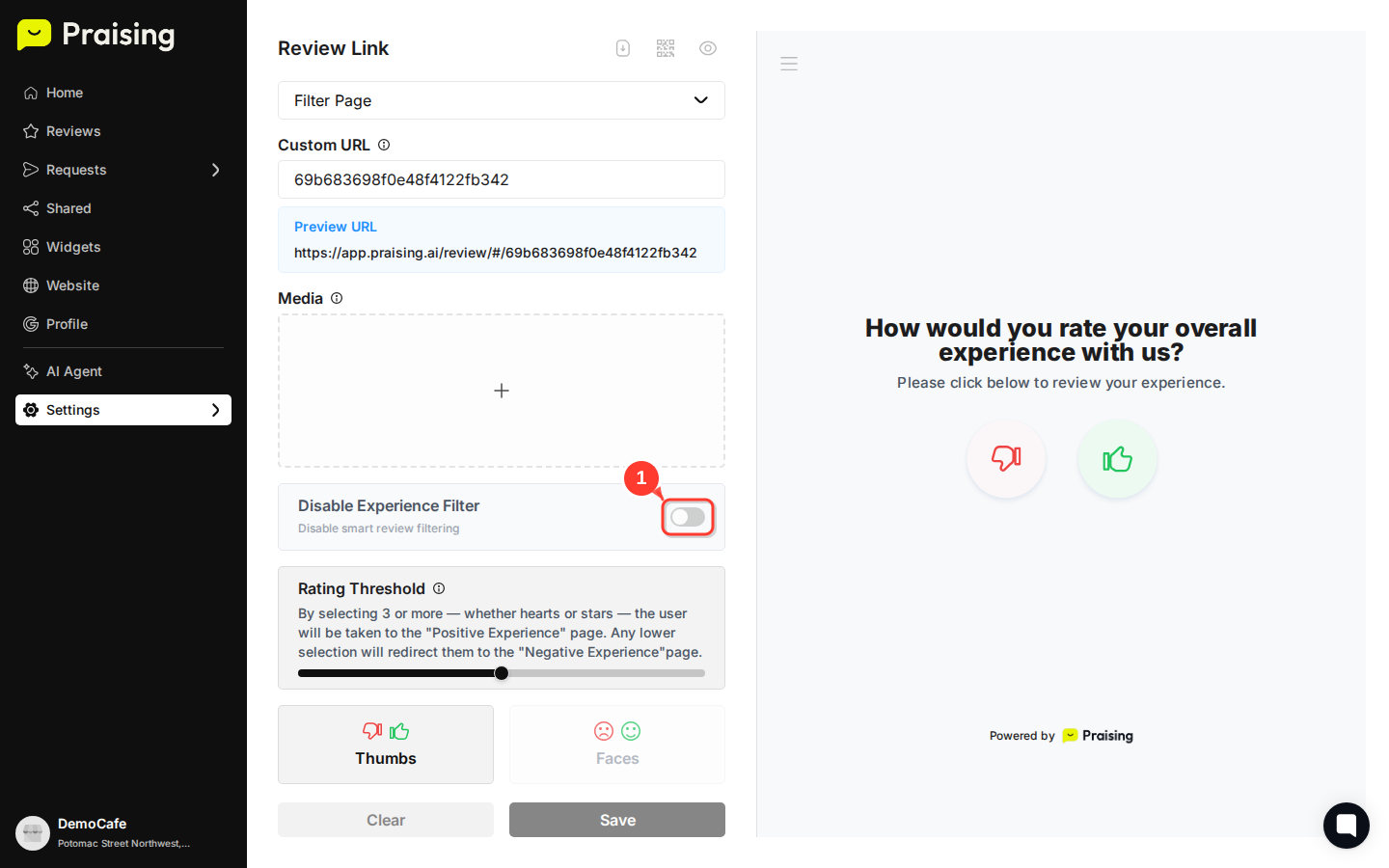
When enabled, the filter directs satisfied customers to public review platforms and routes less satisfied customers to a private feedback channel where you can address their concerns directly.
Step 4: Set your rating threshold
The Rating Threshold slider determines which ratings go to the positive experience path and which go to the negative one.

By default, ratings of 3 or higher — whether hearts, stars, faces, or thumbs — send customers to the positive experience page. Lower ratings go to the negative experience page for private feedback.
Step 5: Choose your rating style
Select the rating format that best fits your brand and your customers. Your options are thumbs up/down, emoji faces, stars, or hearts.
Thumbs are simple and binary. Faces add emotional context. Stars offer a familiar 5-point scale. Hearts feel more personal. Pick whichever matches the tone of your business.
Step 6: Save your configuration
Once everything looks right, save your changes to activate the new configuration.

Your settings take effect immediately. Any new review requests will use your updated configuration, and existing review links will reflect the changes too.
What's Next?
How to send your first review request - Send your first request and start collecting reviews
How to navigate your Praising.ai dashboard - Get familiar with all the tools available in your dashboard
How to create an opt-in page for review collection - Set up automated review collection pages
How to set up auto-campaigns for review requests - Automate your review collection process