Sending review requests is one of the fastest ways to start building social proof for your business. Praising.ai lets you reach out to customers directly from the Send page, whether you want a quick one-off request or a full campaign. This guide walks you through sending your very first review request in just a few clicks.
You have a Praising.ai account set up and are logged in
Your business location is connected to your account
At least one customer is saved on your Contacts page
You have at least one message template under Templates
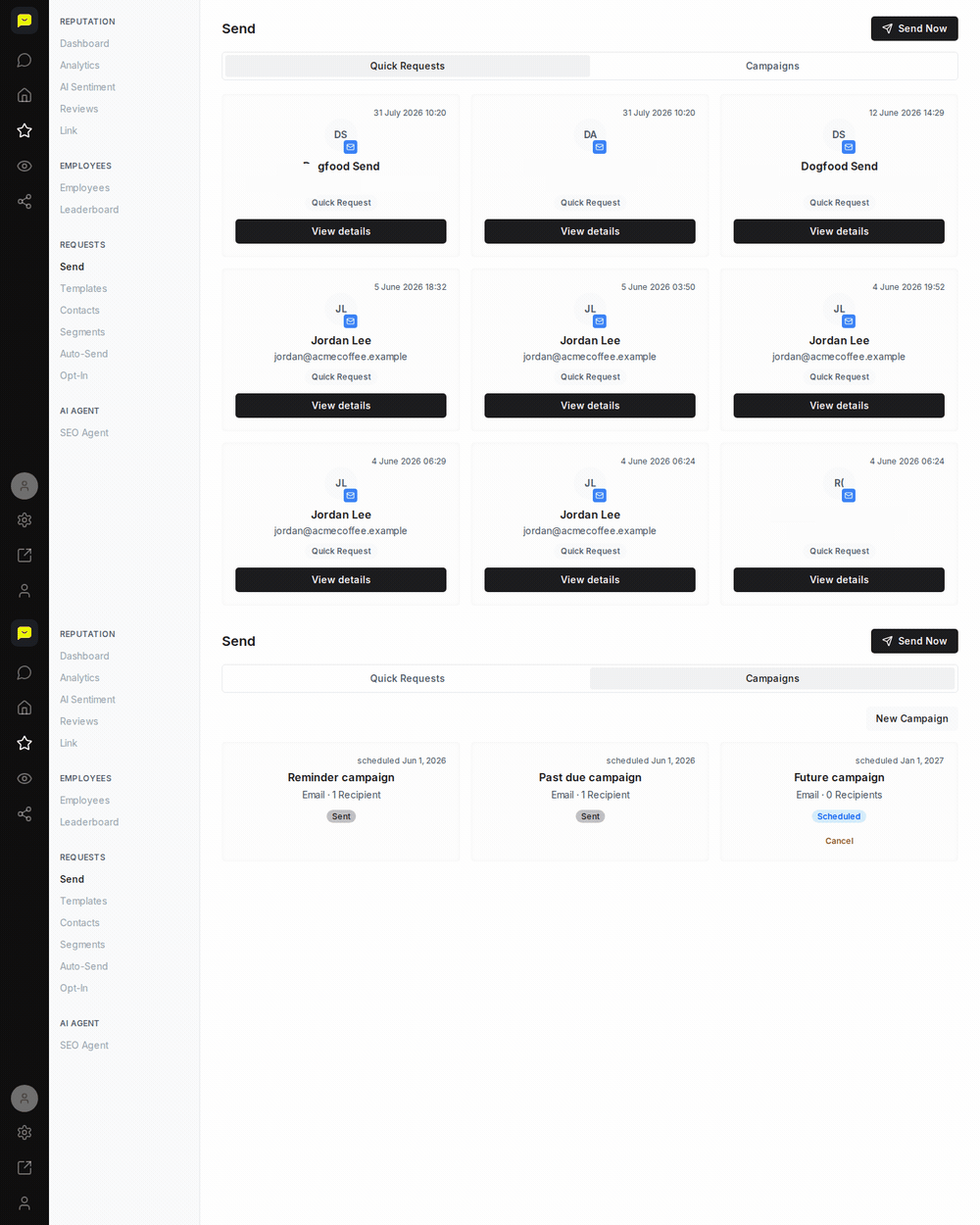
In the left sidebar, expand Reputation and click Send under the Requests section. You can also navigate directly to https://app.praising.ai/dashboard/reputation/send. This is your central hub for all outbound review requests, both one-time messages and organized campaigns.
At the top of the Send page, you'll see two buttons: Quick Requests and Campaigns. The difference is straightforward:
Quick Requests: best for sending to one or a small handful of customers right away, without any campaign setup.
Campaigns: better for larger email batches, up to 1,000 contacts per campaign, sent now or at a time you schedule, all at once or spread out in batches.
Quick Requests is selected by default, so it's the easiest place to start.
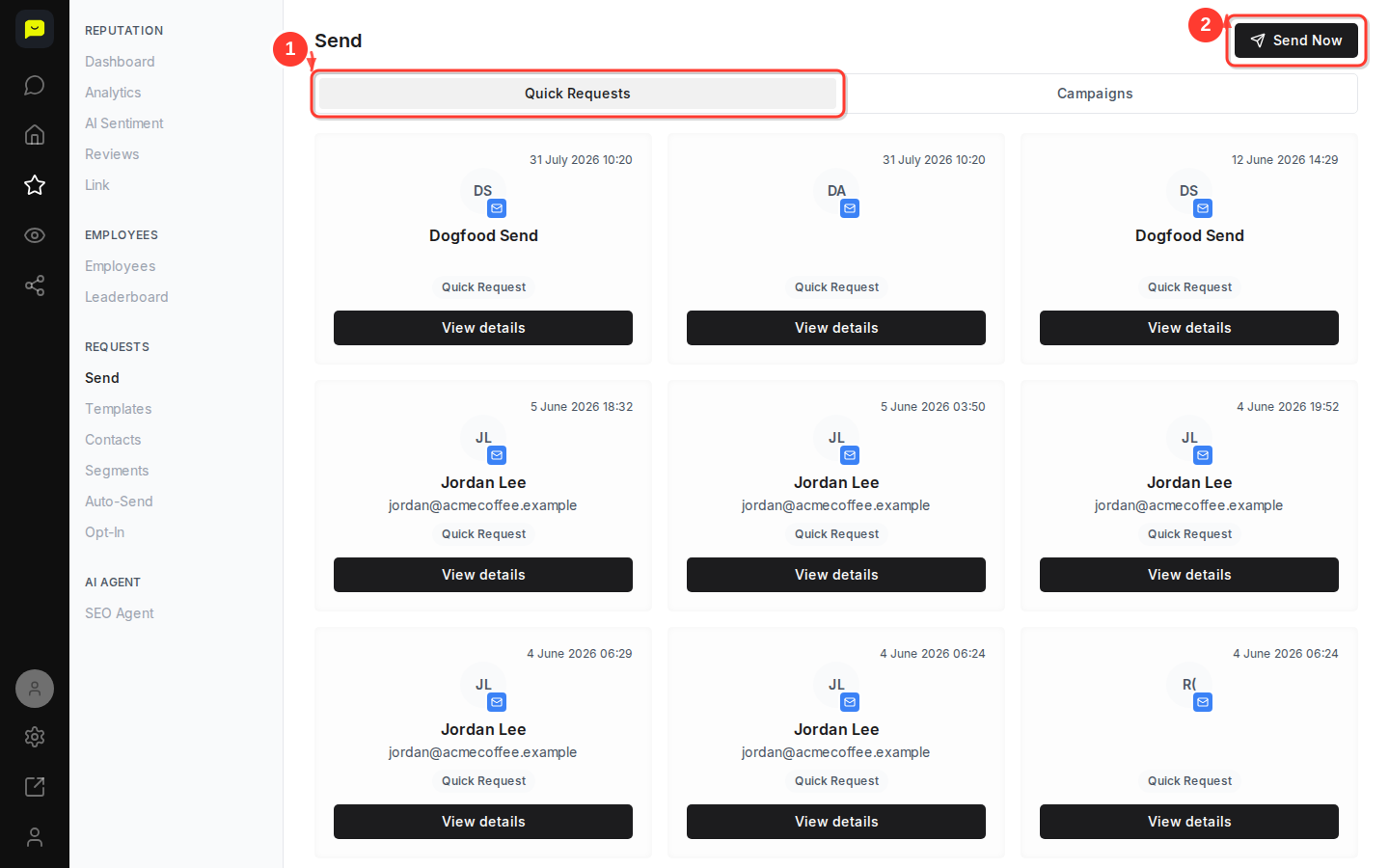
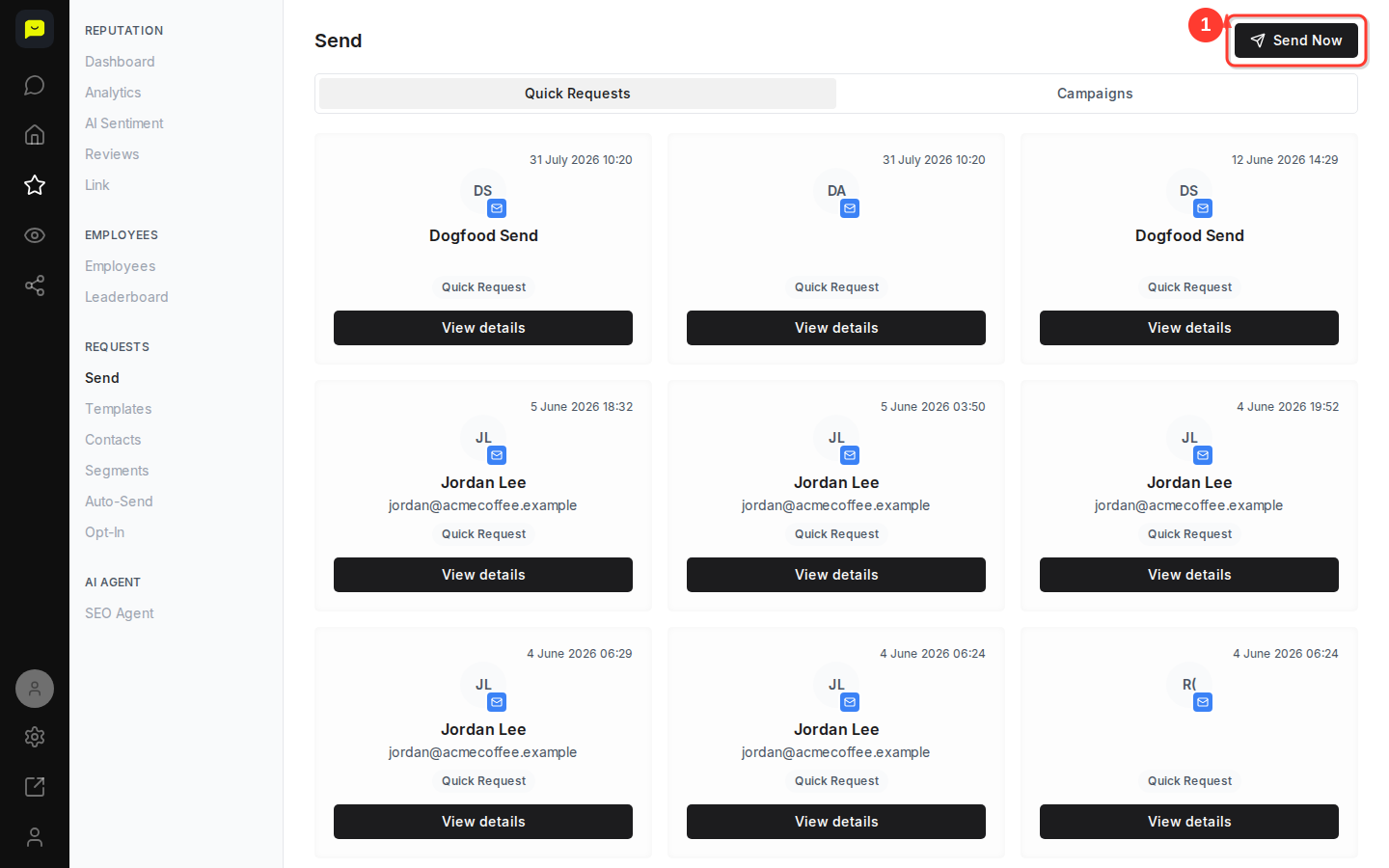
Click the Quick Requests tab to return to the default view, then click Send Now in the top-right area of the page. This opens the Send a review request window, where you pick a template and the customers to send to.

Under Recipients, tick the customers you want to ask, up to 200 at a time. The list shows the contacts saved on your Contacts page, so add a new customer there first. Anyone already asked in the last 30 days is skipped unless you tick Send to them anyway.
Pick a template from the Template list. Its channel decides how the request goes out: email on every plan, or a text message (SMS) on paid plans. To change the wording, edit the template under Templates in the left sidebar. Until you have a template, the Send page asks you to create one first.
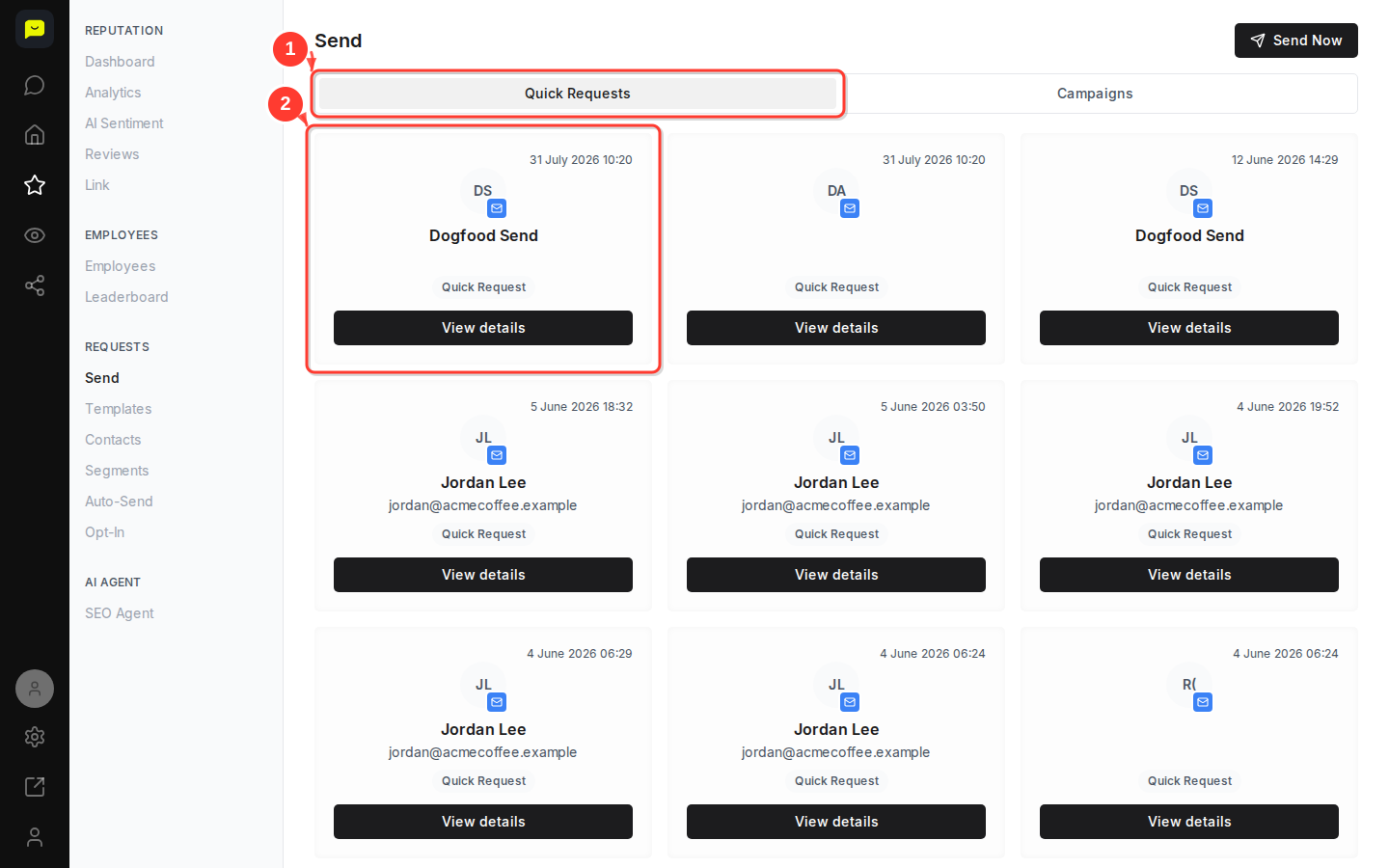
Once you're happy with the contact details and message, hit Send. Your request goes out immediately and will appear in the Quick Requests history list so you can track whether it results in a review.
Now that you've sent your first review request, here are some good next steps to build on it:
How to create a review request campaign: Learn how to send requests at scale using structured campaigns.
How to set up auto-campaigns for review requests: Email a review request automatically to each new contact you add.
How to create an opt-in page for review collection: Let customers sign up for your review requests on a branded page, with their consent recorded.
