
Auto-campaigns automatically send review request templates to newly added contacts after a preset delay. This keeps your review collection consistent without requiring you to manually follow up with every customer.
Step 1: Access the Auto-Send Feature
Navigate to Reputation → Auto-Send in the left-hand navigation. Under the Reputation section, look for the Requests group, then click Auto-Send.
Auto-Send lets you automatically send a chosen template to newly added contacts. You can base the delay on either when a contact was added to your system or their actual service date.
Step 2: Enable Auto-Send Automation
Turn on the feature by toggling the Enable Auto-Send switch. This is the master control for your auto-campaign.
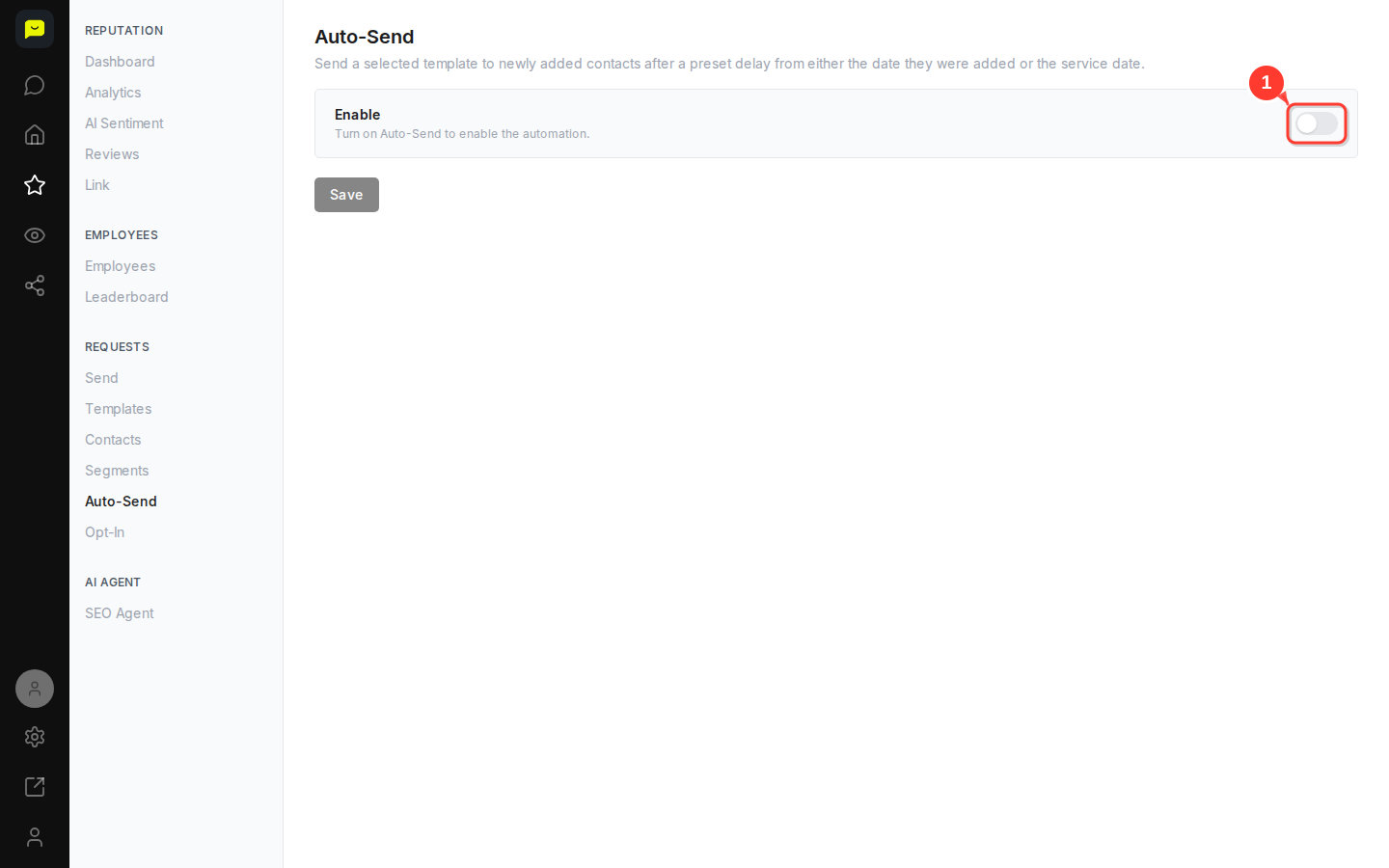
Once enabled, Praising.ai starts monitoring for newly added contacts and sends your configured review request template based on the delay you set.
Step 3: Configure Your Template and Timing
With Auto-Send turned on, you'll see additional configuration options appear. Select which review request template to send, then decide whether the delay should count from the contact addition date or the service date.
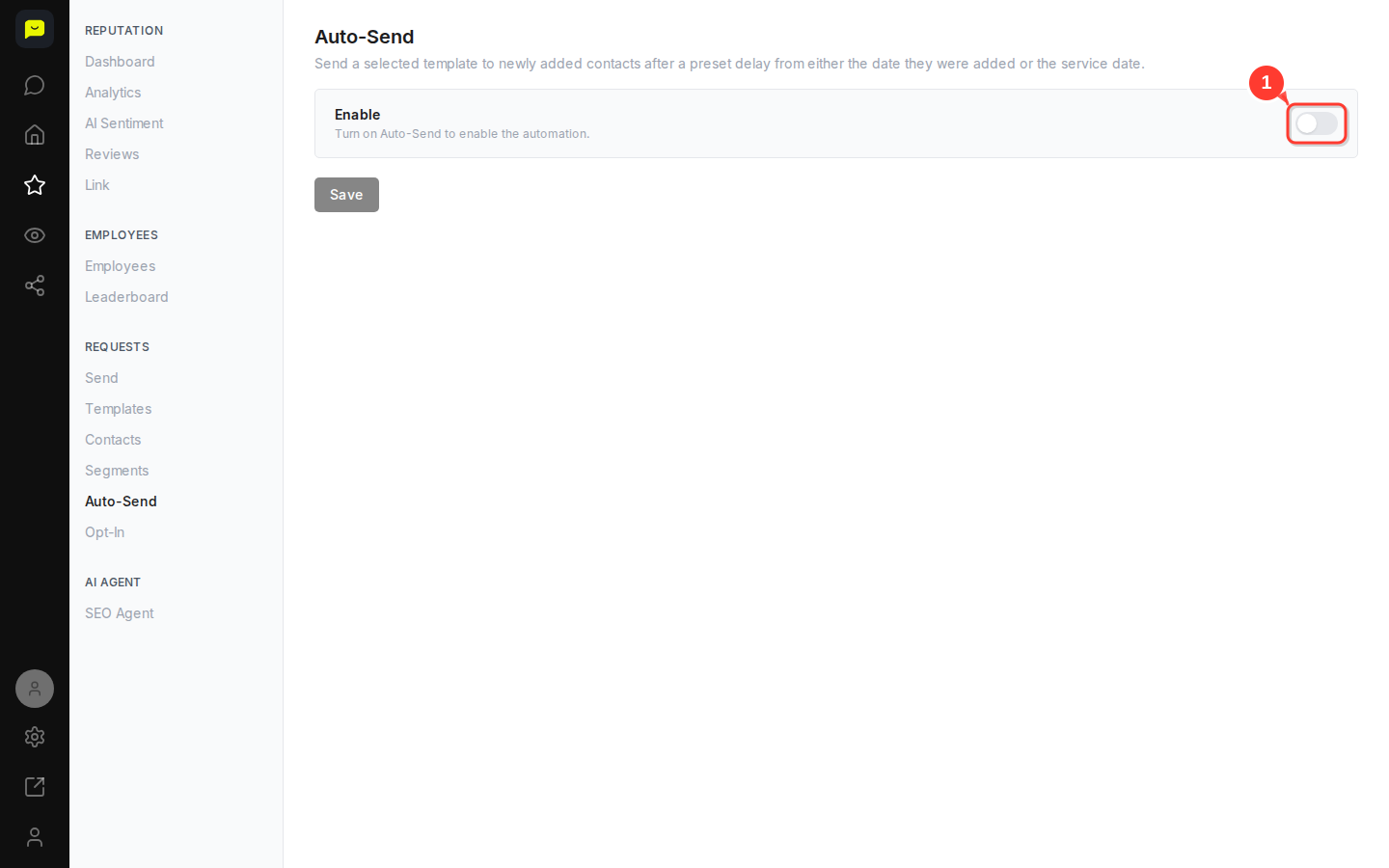
Getting the timing right matters. A request that arrives too soon or too late is easy to ignore, so pick the date type that best reflects when your customers have had a chance to form an opinion.
Step 4: Save Your Auto-Campaign Settings
Click the Save button to activate your configuration. The button becomes clickable once you've made your selections.
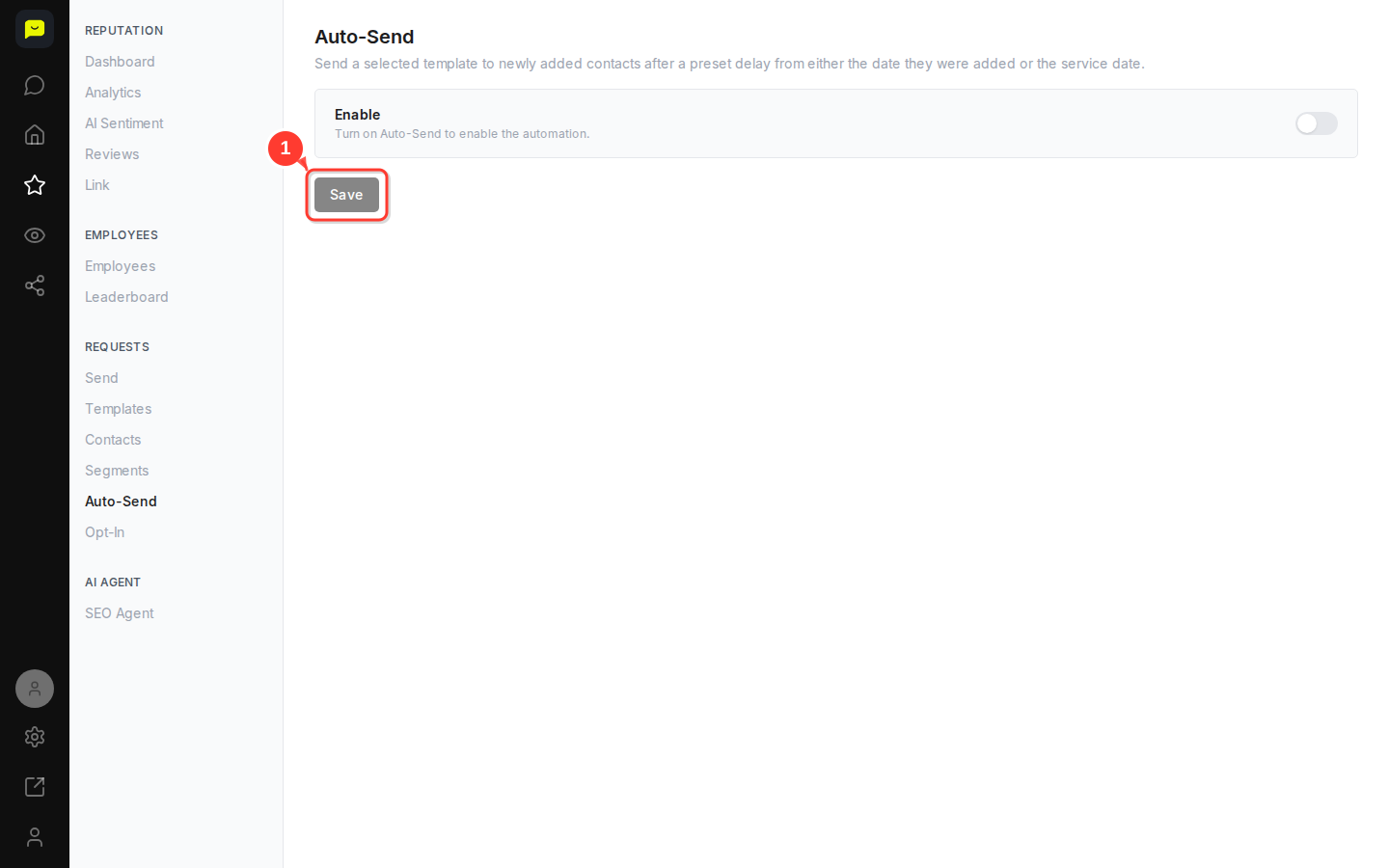
Your auto-campaign is now live and will process newly added contacts according to your delay and template settings.

Step 5: Monitor Auto-Campaign Performance
Check your Send section regularly, go to Reputation → Requests → Send in the left-hand nav, to see which contacts have received automated messages and how those requests are performing.
This view covers all outgoing review requests, including automated ones, so you can track response rates and tweak your approach over time.
What's Next?
Once your auto-campaign is running, remember that Auto-Send sends one email template to every new contact, so write it to suit all your customers. For high-value customers, a manual review request from Send may work better than an automated one. Keep an eye on how many requests get clicked and adjust your delay timing accordingly.
Open Auto-Send →