
The Business Profile page (Profile in the menu) checks your Google Business Profile and shows what's missing, with a link to fix each item on Google. Below that, you can write the business details shown on your Praising website. Praising doesn't change your Google listing or update listings on other sites.
Prerequisites
Link your location to its business on Google first: under Settings → Integrations, click Connect on the Google row and choose Google Public Access (find your listing by name) or Google Login (sign in to your Business Profile; an owner or admin does this). With Google Login, Praising can check every item; otherwise a few show under Can't check yet.
Steps
Access the Profile section
In your Praising.ai dashboard, open the Visibility section in the left-hand navigation, then click Profile. You can also navigate directly to /dashboard/visibility/profile.
Link your Google listing if asked
If the page says Link your Google listing first, click Pick your business on Google. It takes you to Settings → Integrations, where you choose your business on Google.
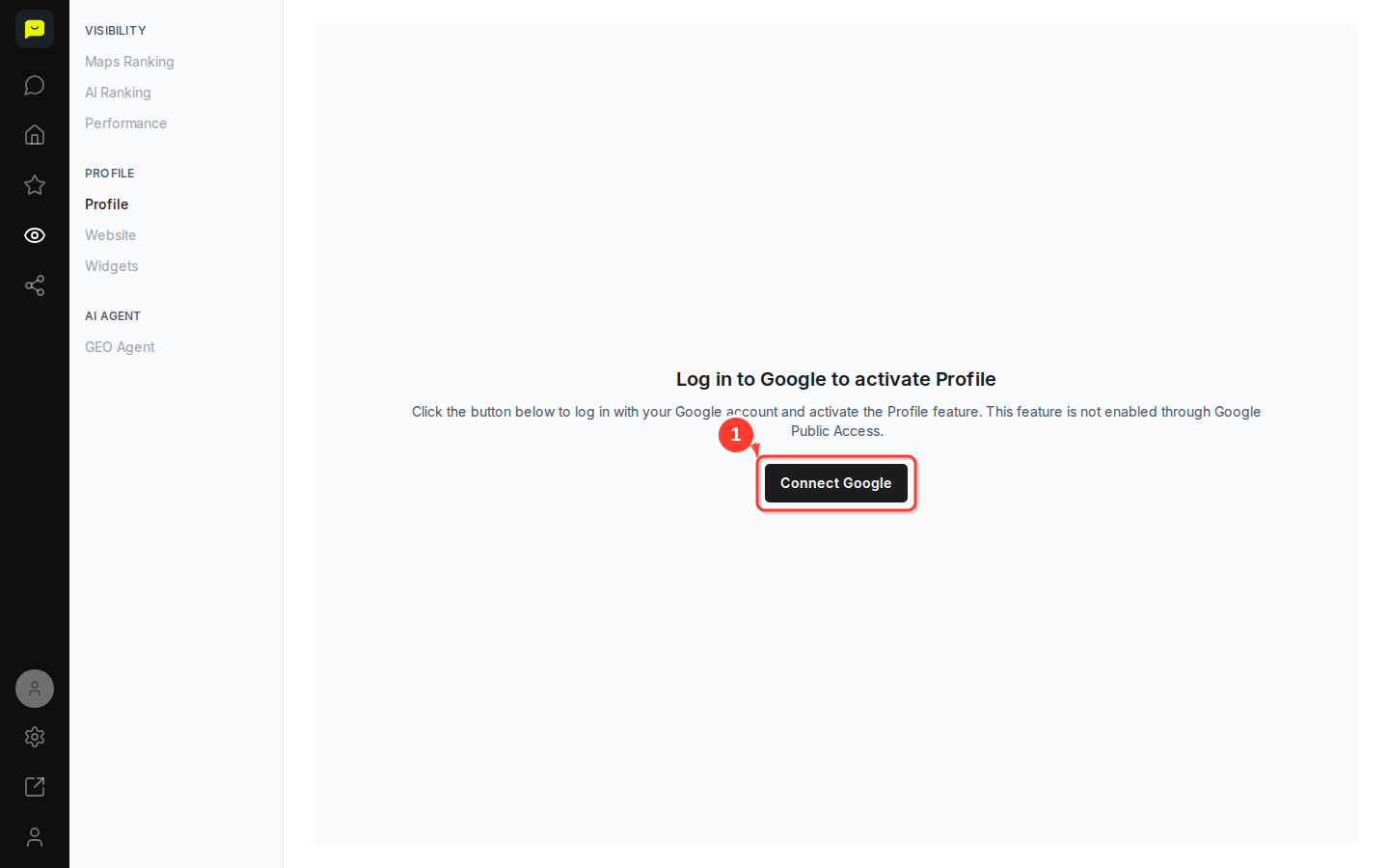
Read your checklist
The card at the top says how complete your Google profile is, as a percentage, across 10 items: main category, extra categories, opening hours, holiday hours, phone number, website, business description, photos, features and replies to reviews. Items are grouped under To fix on Google, Can't check yet and Done.
Fix each item on Google
Each missing item has a Fix on Google link (Reply on Google for review replies) that opens Google, where you make the change. Praising re-reads your Google profile about once a week, so a fix shows here after the next read.
Edit your Praising website profile
Below the checklist, fill in About, Category & website, Services, Hours and Attributes, then click Save profile. These details appear on your Praising website only. They don't change your Google Business Profile or any other listing.

What's Next?
Next, open Reviews under Reputation to read and answer your Google and Trustpilot reviews, or go to Visibility → Widgets to show your best reviews on your own website. On paid plans, once you switch on the SEO Agent under Reputation, it drafts a reply to each new review for you to approve.
Open your business profile →