
The Profile feature in Praising.ai lets you manage your business listings across multiple platforms from one central dashboard, keeping your information consistent across major review and directory sites.
Prerequisites
You'll need a Google account to activate the Profile feature, as it integrates with Google My Business to access and manage your listings.
Steps
Access the Profile section
In your Praising.ai dashboard, open the Visibility section in the left-hand navigation, then click Profile. You can also navigate directly to /dashboard/visibility/profile.
Connect your Google account
Click the Connect Google button to link your Google My Business account. This gives Praising.ai access to your existing listings so it can manage them on your behalf.
Complete the Google authentication
Follow the Google login prompts to grant Praising.ai permission to access your business profile data. Once you're done, the platform pulls in your existing listing information and can push updates across platforms.
Review your connected listings
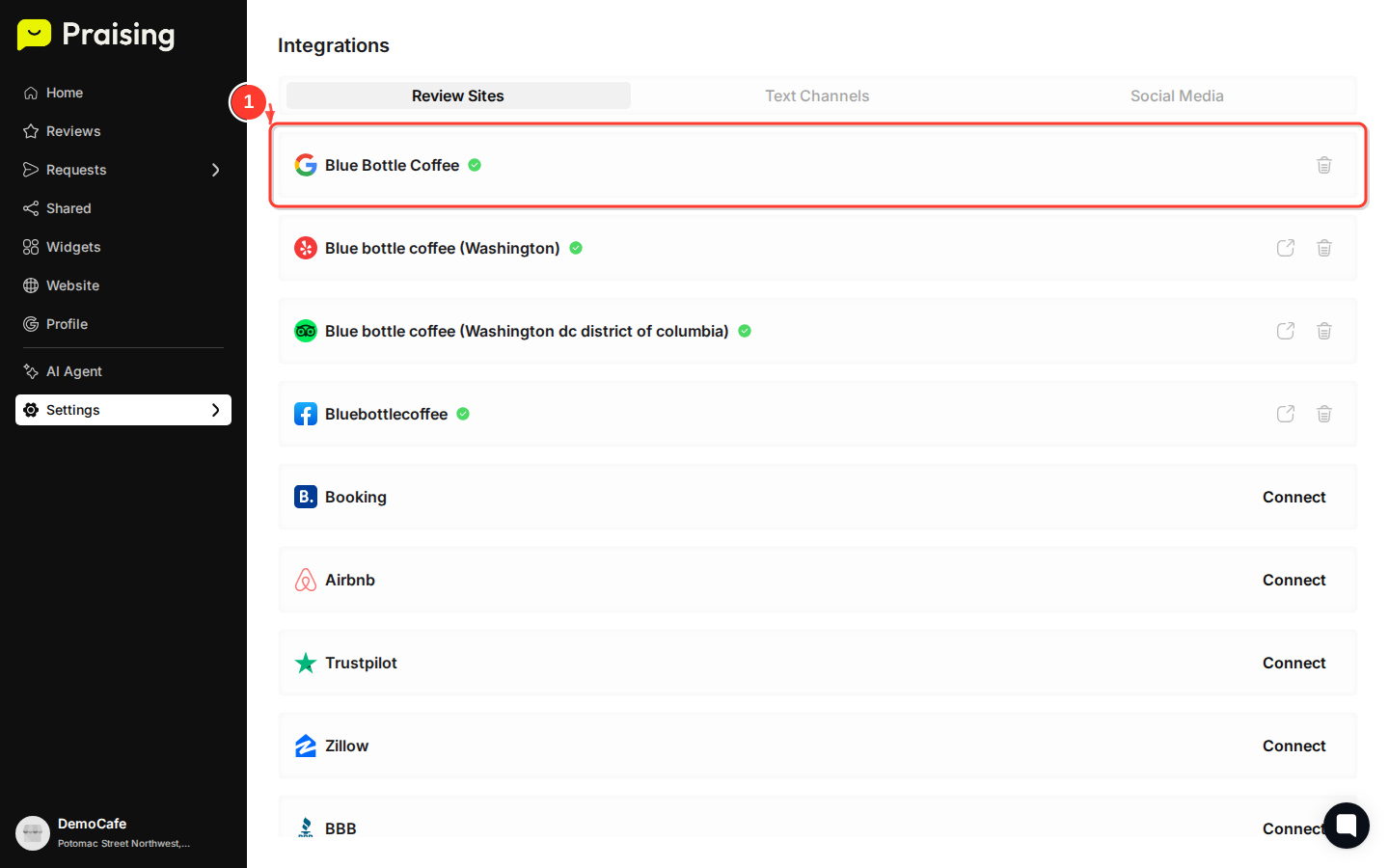
After connecting, your listings from various platforms appear together in one view. You can see at a glance how your business shows up across different review sites and directories.
Update listing information
Edit your business details, hours, contact information, or descriptions. Changes sync automatically across all connected platforms.

What's Next?
After setting up your Profile management, explore the Reviews section (under Reputation in the left-hand nav) to monitor customer feedback across all platforms, or click AI Agent in the left-hand navigation to set up automated responses to customer inquiries. You can also navigate to Visibility > Widgets to embed your unified review display on your website.
Open your business profile →