Your AI Agent's response settings determine how it interacts with customers, including response timing, tone, and automated behaviors. Properly configuring these settings ensures your AI Agent provides helpful, brand-consistent responses that enhance the customer experience.
You must have a Pro account to access AI Agent features
Your business profile should be set up with basic information
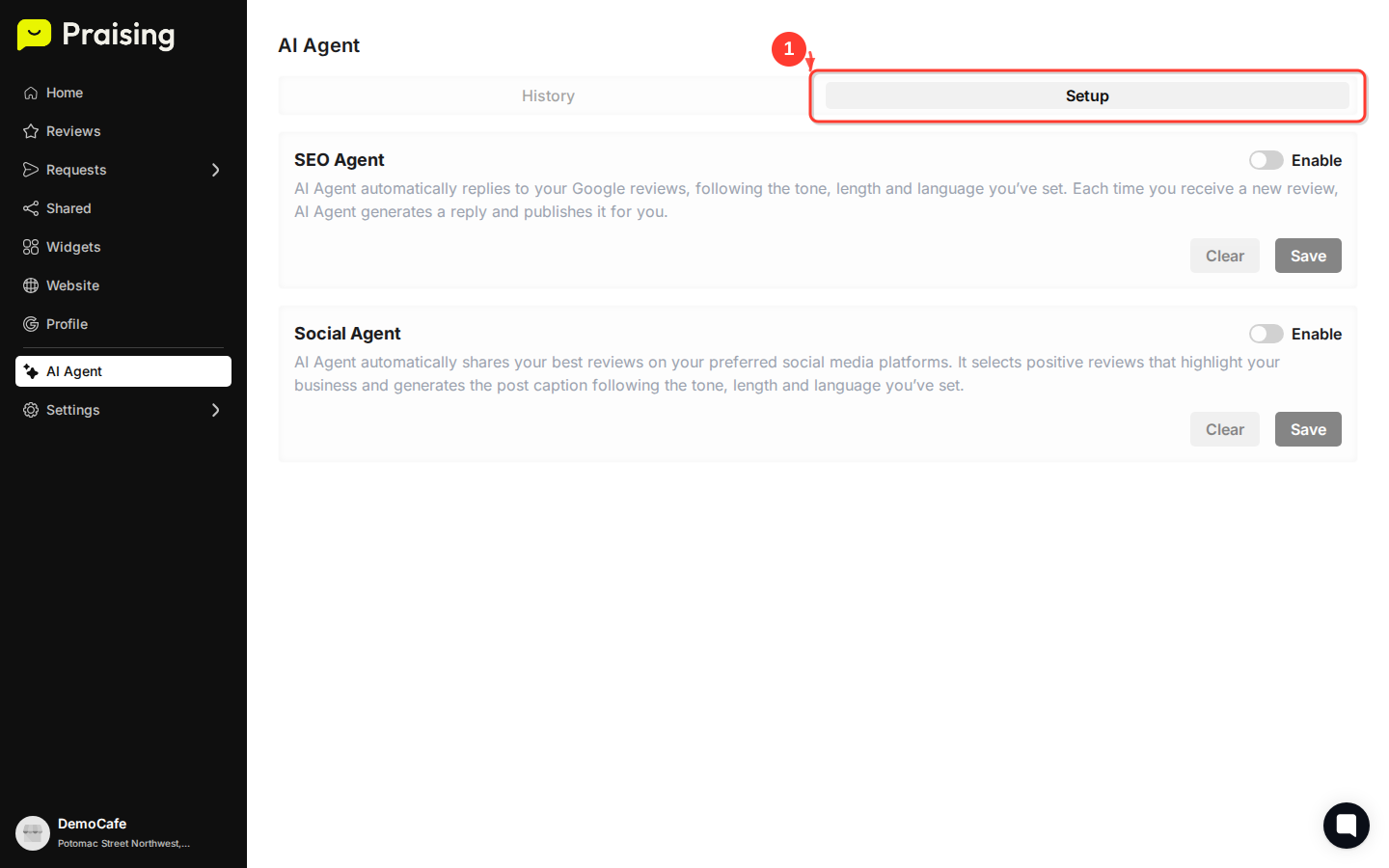
Navigate to the Setup tab
From your AI Agent page, click the "Setup" tab to access configuration options. This tab contains all the settings that control how your AI Agent behaves when responding to customer inquiries.
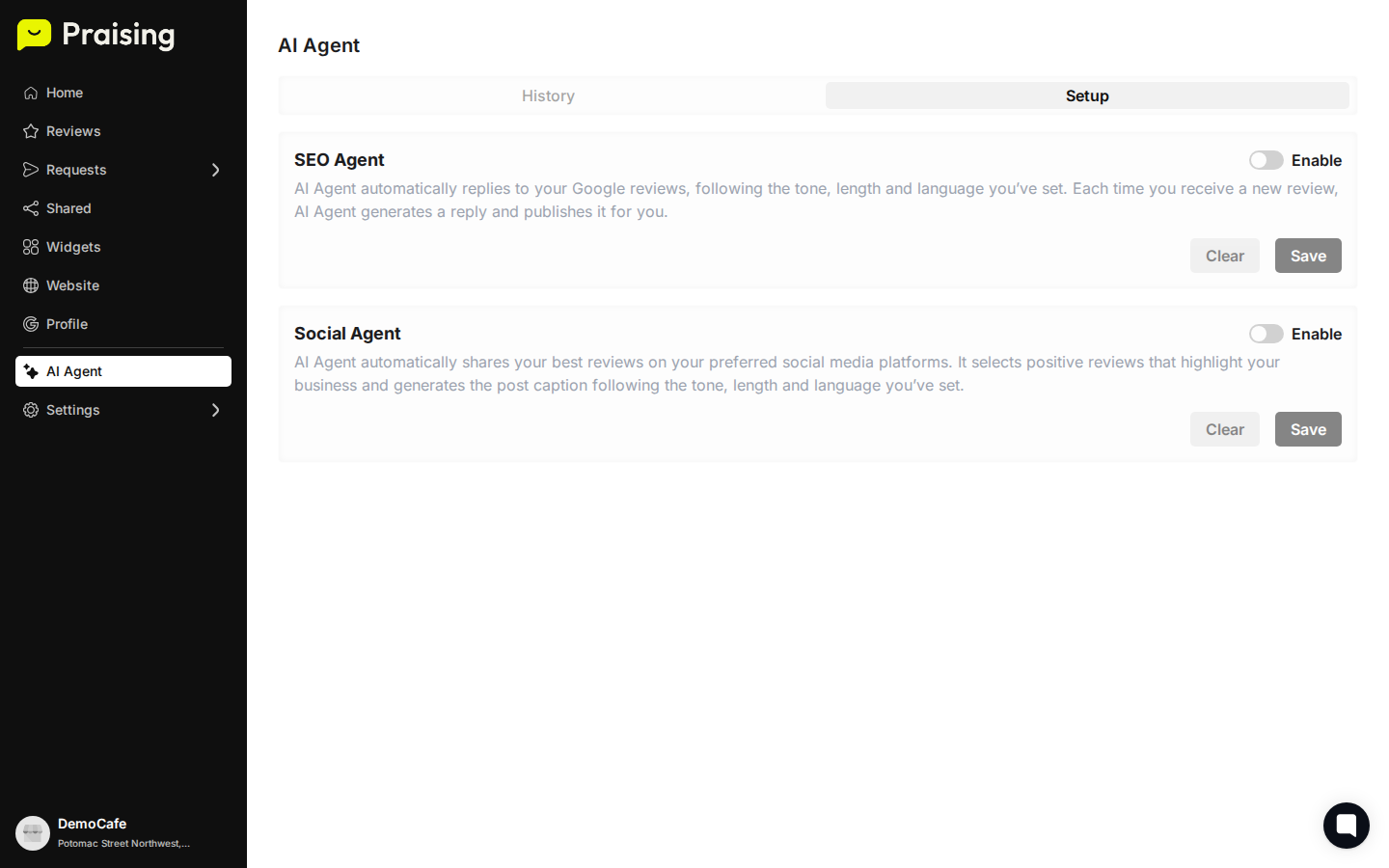
Configure response timing settings
Scroll down to locate the response timing controls. These settings determine how quickly your AI Agent responds to customer messages and whether there should be delays to make responses feel more natural.
Set up automated response triggers
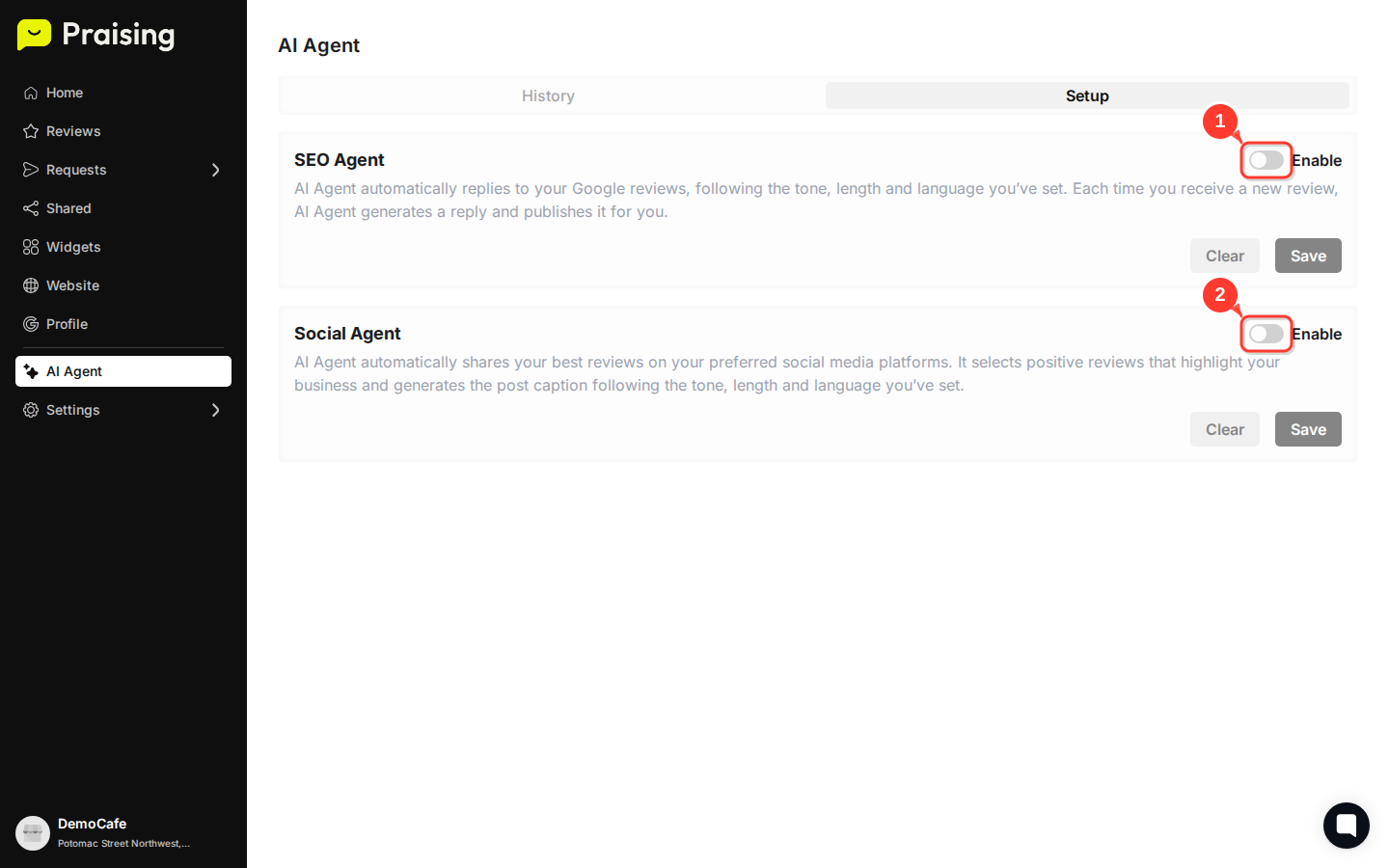
Look for the automated response settings that control when your AI Agent should automatically engage with customers. Toggle the enable switch to activate automatic responses and adjust the delay amount to control timing.
Customize response tone and personality
Navigate to the personality settings section where you can define how your AI Agent communicates. This includes setting the tone (professional, friendly, casual) and any specific brand voice guidelines.
Configure knowledge base integration
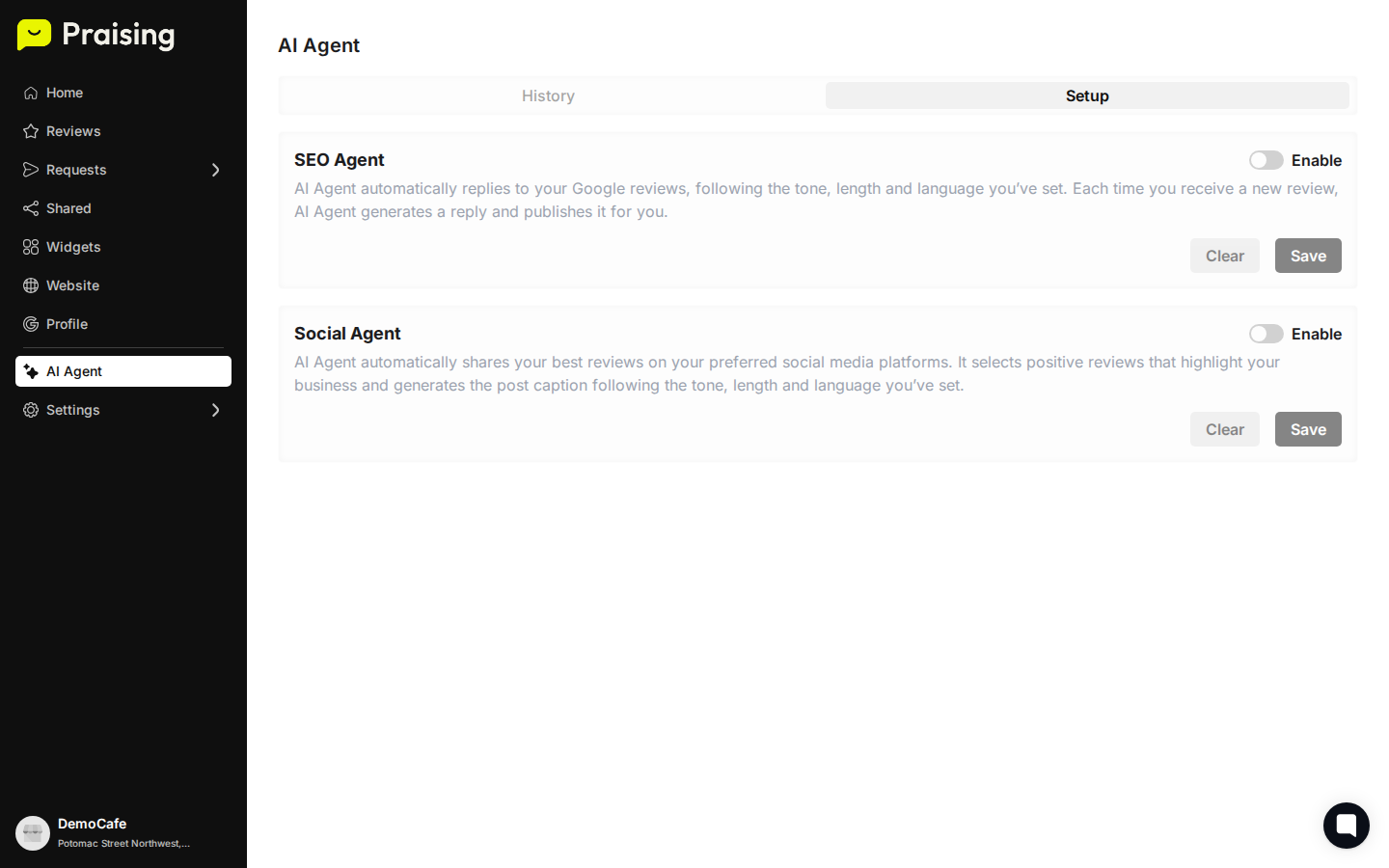
Expand the knowledge base settings to connect your AI Agent with your business information. This ensures responses are accurate and relevant to your specific services and policies.
Set response boundaries and limitations
Review the response scope settings to define what topics your AI Agent should and shouldn't address. This helps maintain appropriate boundaries and ensures customers are directed to human support when needed.
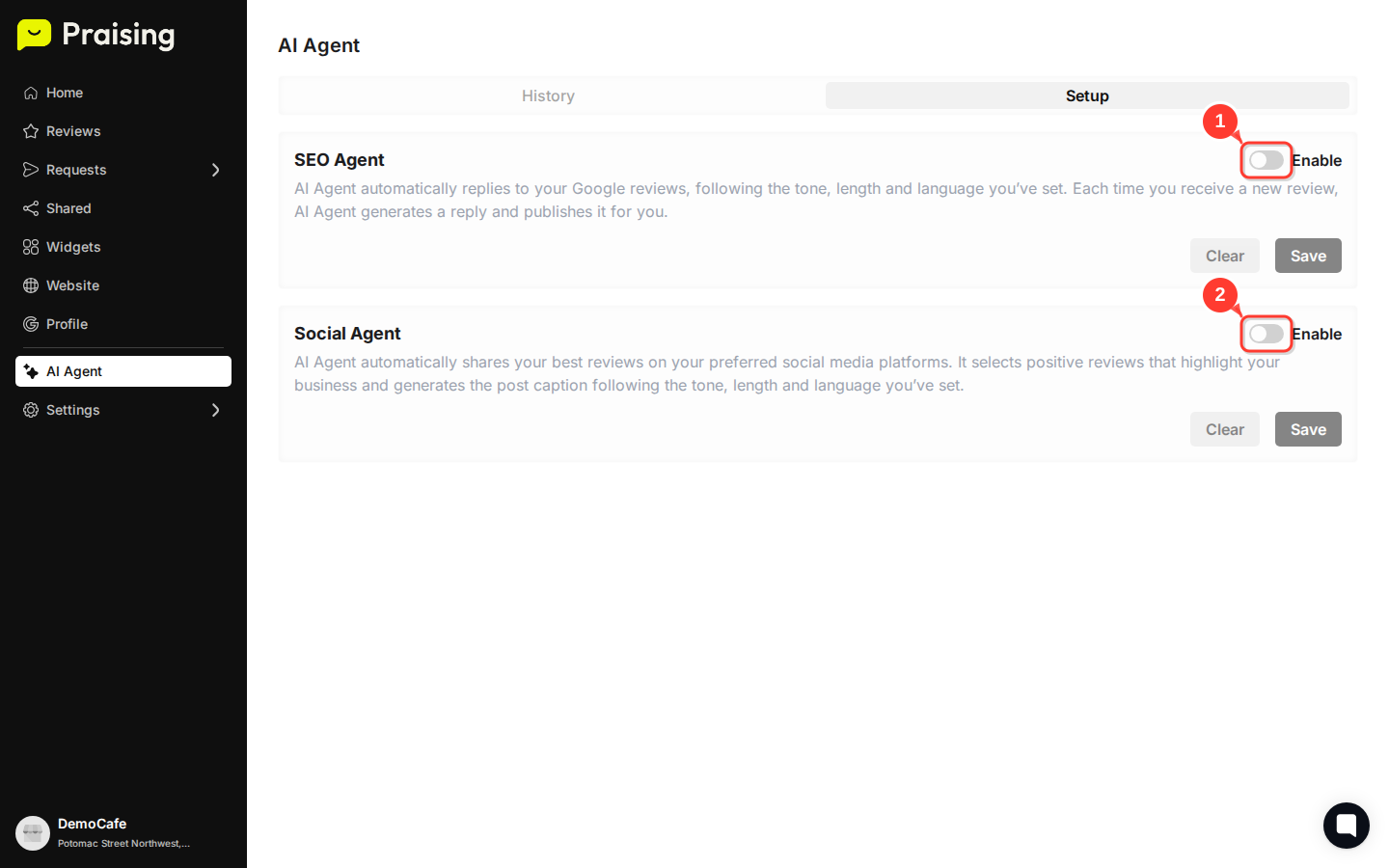
Save your configuration
After adjusting all settings, save your changes to activate the new configuration. Your AI Agent will immediately begin using these settings for all future customer interactions.
Tip: Start with conservative settings and gradually adjust based on customer feedback. Monitor your AI Agent's performance in the History tab to see how well it's handling customer inquiries and make refinements as needed.
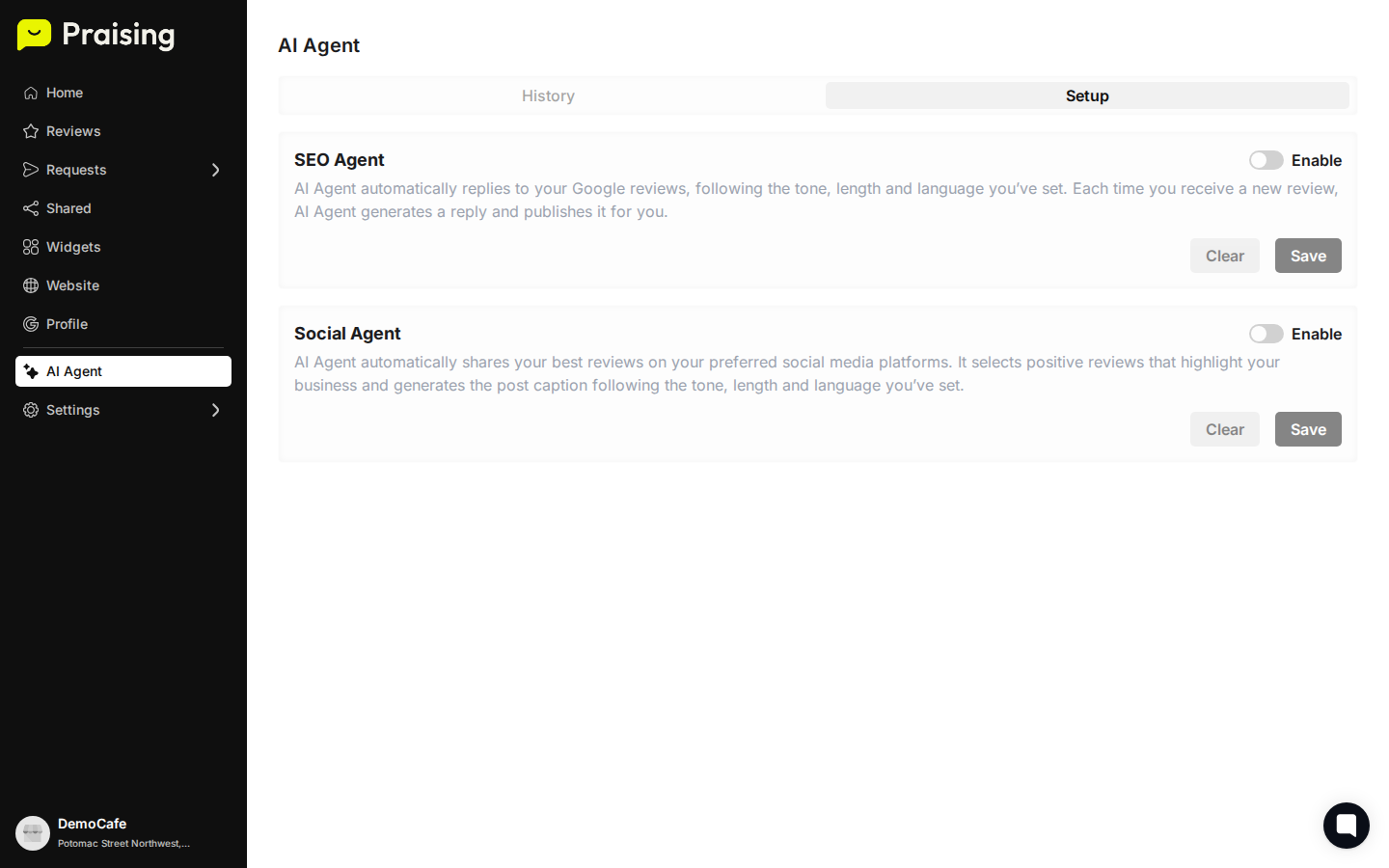
Once your AI Agent response settings are configured, monitor its performance through the History tab to see real customer interactions. Consider setting up automated reports to track response quality and customer satisfaction. You can always return to the Setup tab to fine-tune settings based on actual usage patterns and customer feedback.
