The Social Agent turns your best customer reviews into ready-to-publish social media captions, automatically. Instead of writing posts from scratch, it picks your most compelling reviews, drafts captions in your preferred tone and language, and lets you share them to Facebook, Instagram, or anywhere else with minimal effort.
A Praising.ai Pro account
At least one review collected on your account
A connected Facebook Page or Instagram account (optional — you can also copy posts manually)
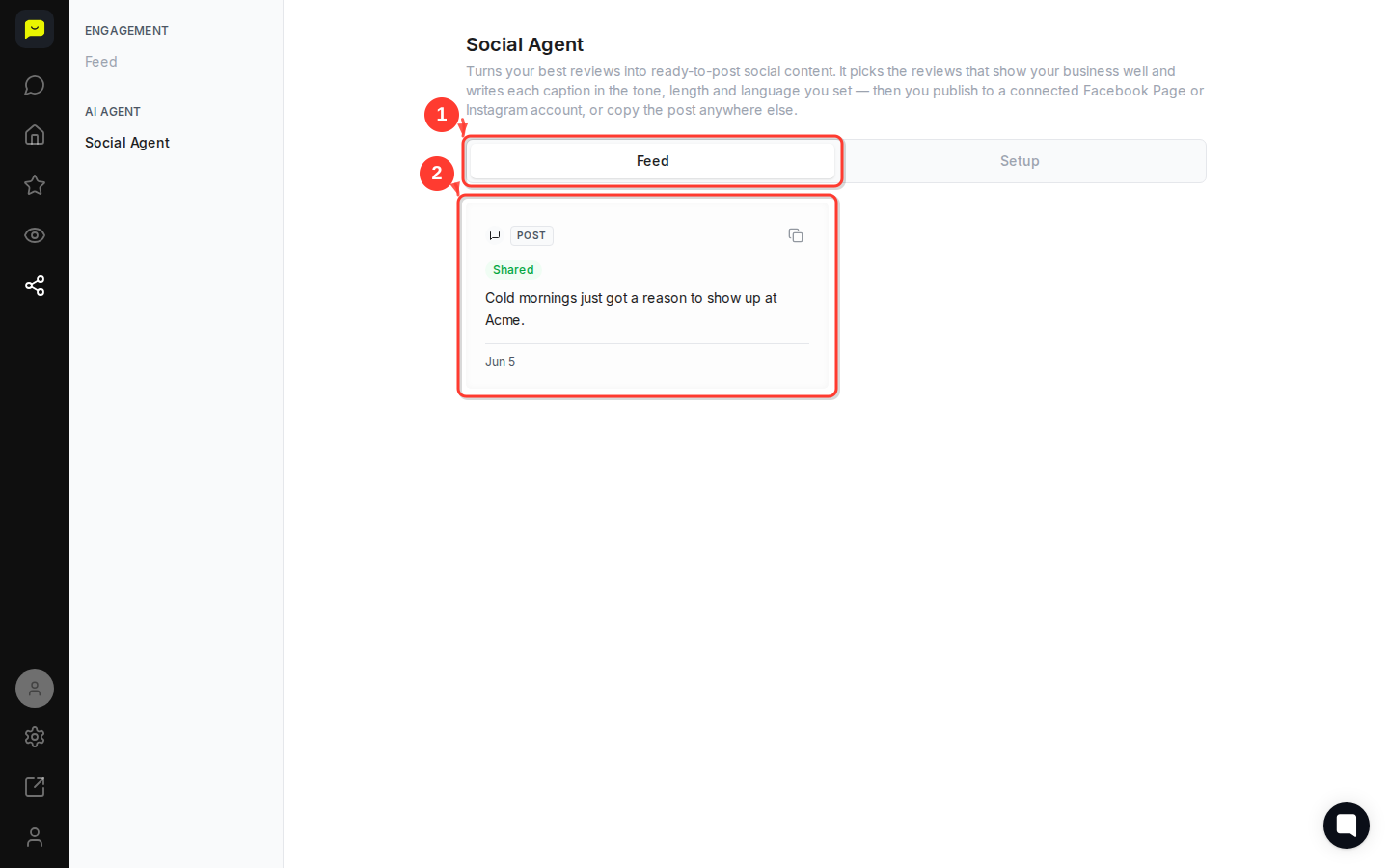
Navigate to Engagement → Social Agent in the left sidebar. You'll land on the Social Agent page, where the header explains what the tool does: it picks the reviews that show your business well and writes each caption in the tone, length, and language you set.
The feed tab is active by default and shows every post the Social Agent has already prepared for you. Each card displays the drafted caption and the date it was generated. This is your content queue — everything here is ready to review and publish.
In the example feed, you'll see posts like "Cold mornings just got a reason to show up at Acme." — a caption automatically crafted from a real customer review.

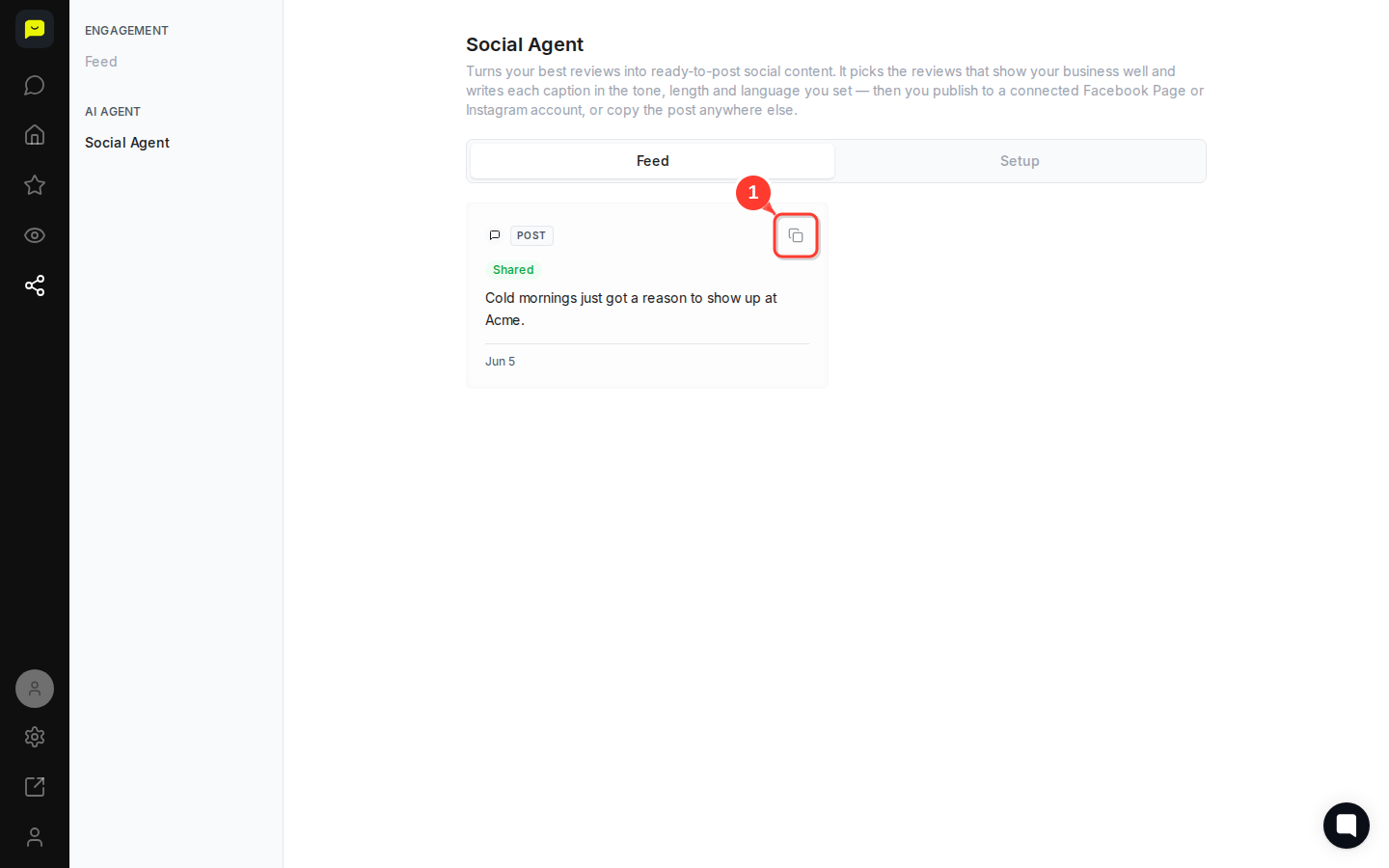
On any post card, you'll see a Copy button (the clipboard icon). Click it to copy the caption to your clipboard, ready to paste into any social platform, email newsletter, or scheduling tool you already use.
If you have a connected Facebook Page or Instagram account, you can publish directly without leaving Praising.ai.
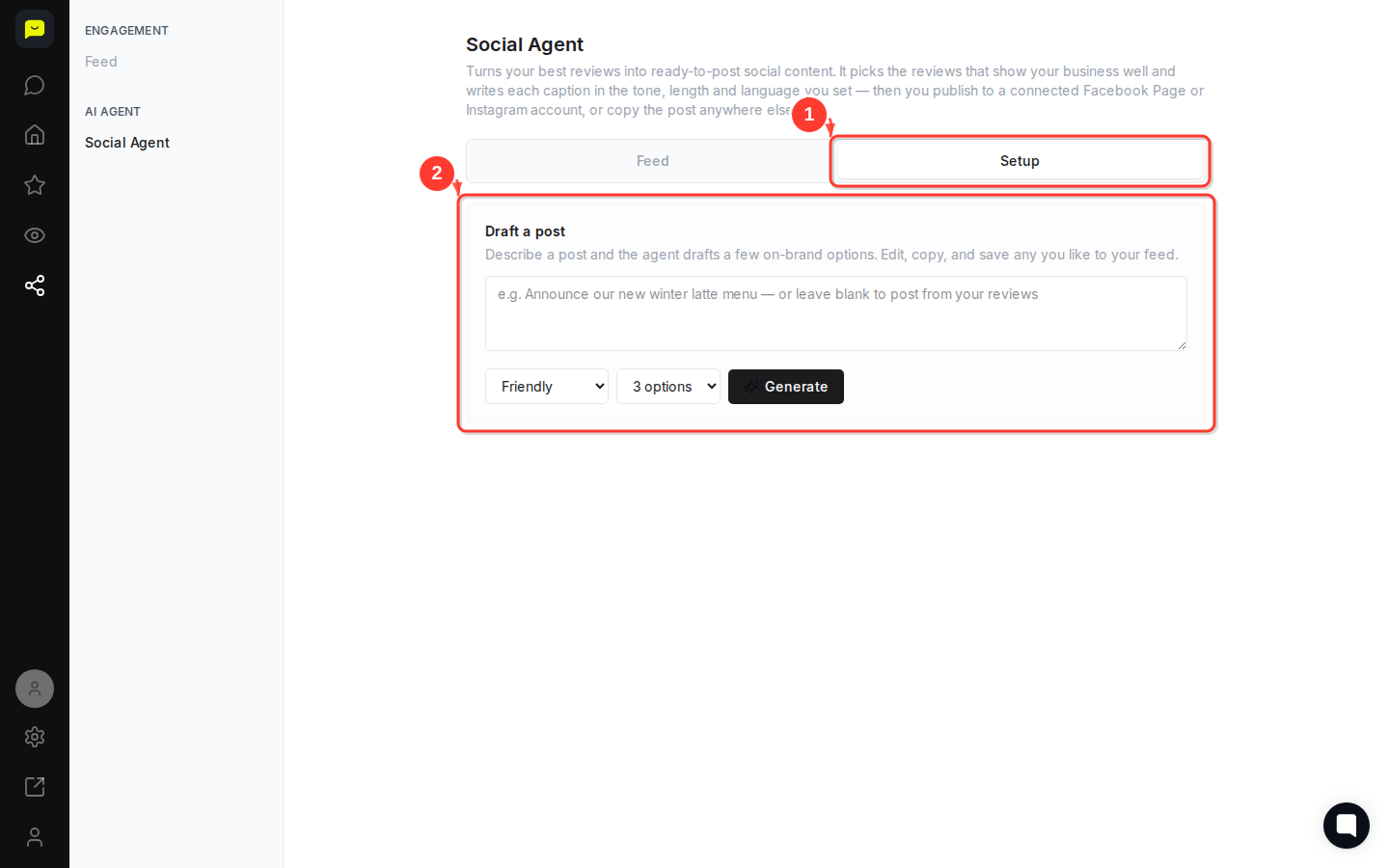
Click the setup tab to control how the Social Agent writes your posts. This is where you set the tone (friendly, professional, casual), the caption length, and the language, so every generated post sounds like your brand rather than a generic template.
Take a moment to dial in these settings before your next batch of posts is generated. Getting them right once means every future caption arrives ready to publish.
Within the setup tab, you'll find options to link your Facebook Page or Instagram account. Connecting an account lets you publish directly from the feed with a single click, skipping the copy-paste step entirely.
If you're not ready to connect a social account, that's fine. The Copy button on every post card means you can always grab the caption and post it wherever you like.
Now that your Social Agent is set up, here are a few ways to get more from Praising.ai:
[How to reply to customer reviews](https://help.praising.ai/en/articles/69ba5f6388b75a8cd7a31617) — Stay on top of your reputation by responding to reviews directly from your dashboard.
[How to set up auto-campaigns for review requests](https://help.praising.ai/en/articles/69de0408b47c262aae10ddbf) — The more reviews you collect, the more the Social Agent has to work with.
[How to set up integrations with other platforms](https://help.praising.ai/en/articles/69de040dda9c152c8461a230) — Connect Praising.ai to the rest of your toolkit for a smoother workflow.
