Knowing which team members are driving the most reviews helps you build your reputation more deliberately. The Employees section in Praising.ai lets you monitor individual performance, share personalized review links, and recognize your top contributors, all from one place.
You must have at least one employee added to your account.
This feature is available on Pro accounts and above.
Navigate to https://app.praising.ai/dashboard/reputation/employees. In the left sidebar, you'll find the Employees section under the Reputation menu. The main panel displays all employees currently added to your account. In this example, Maya Chen appears as an employee card with action options beneath her name.
This page is your central hub for managing individual review contributors and viewing how each person is performing.
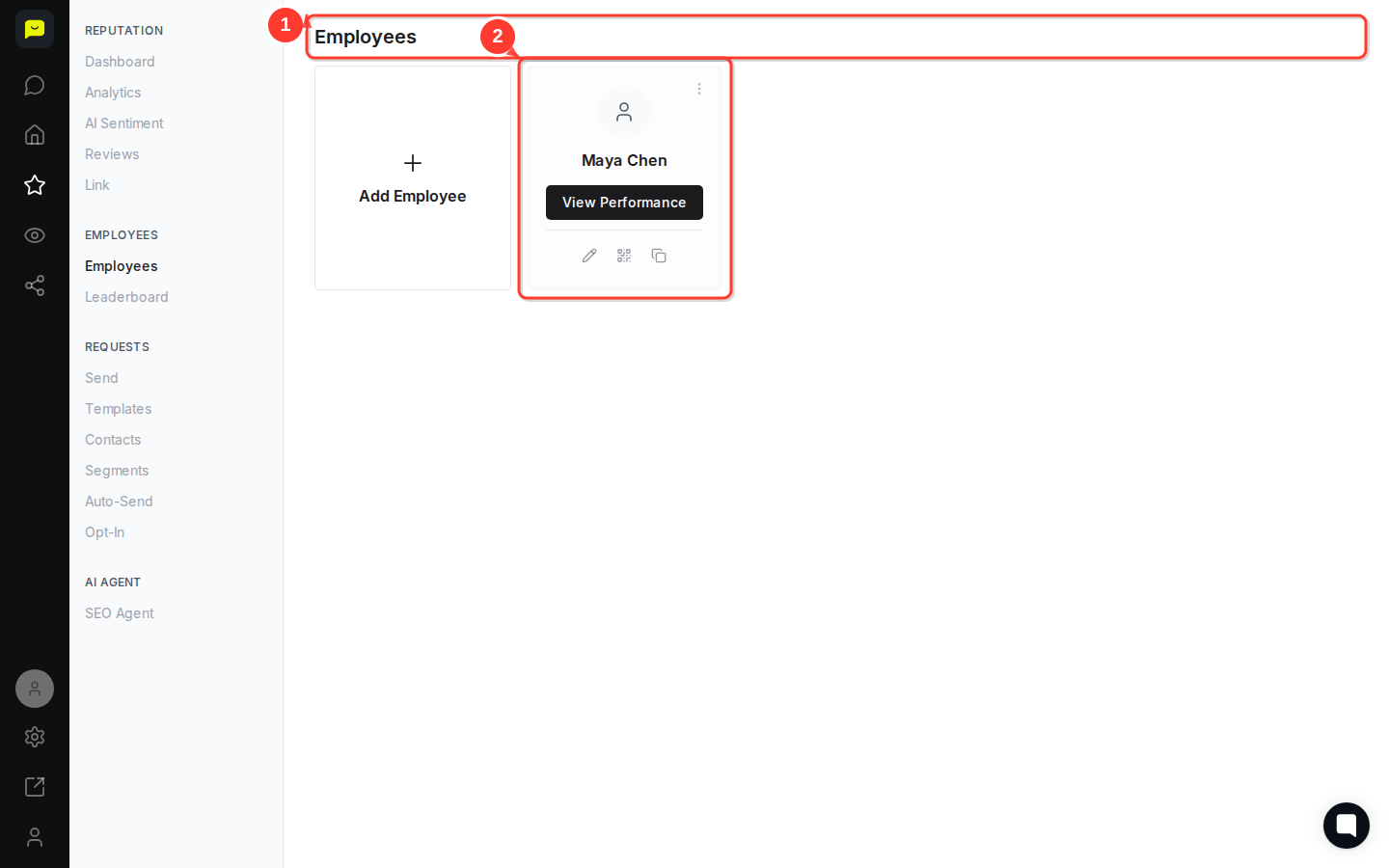
Click the More for Maya Chen button (the icon next to her card) to reveal the available actions for that employee. You'll see four options:
View Performance — opens her individual review metrics
Edit — update her name or details
QR code — generate a scannable link she can use in person
Copy personal link — grab her unique review request URL
These tools let you tailor each employee's review collection approach and track results individually, rather than as one blended total.
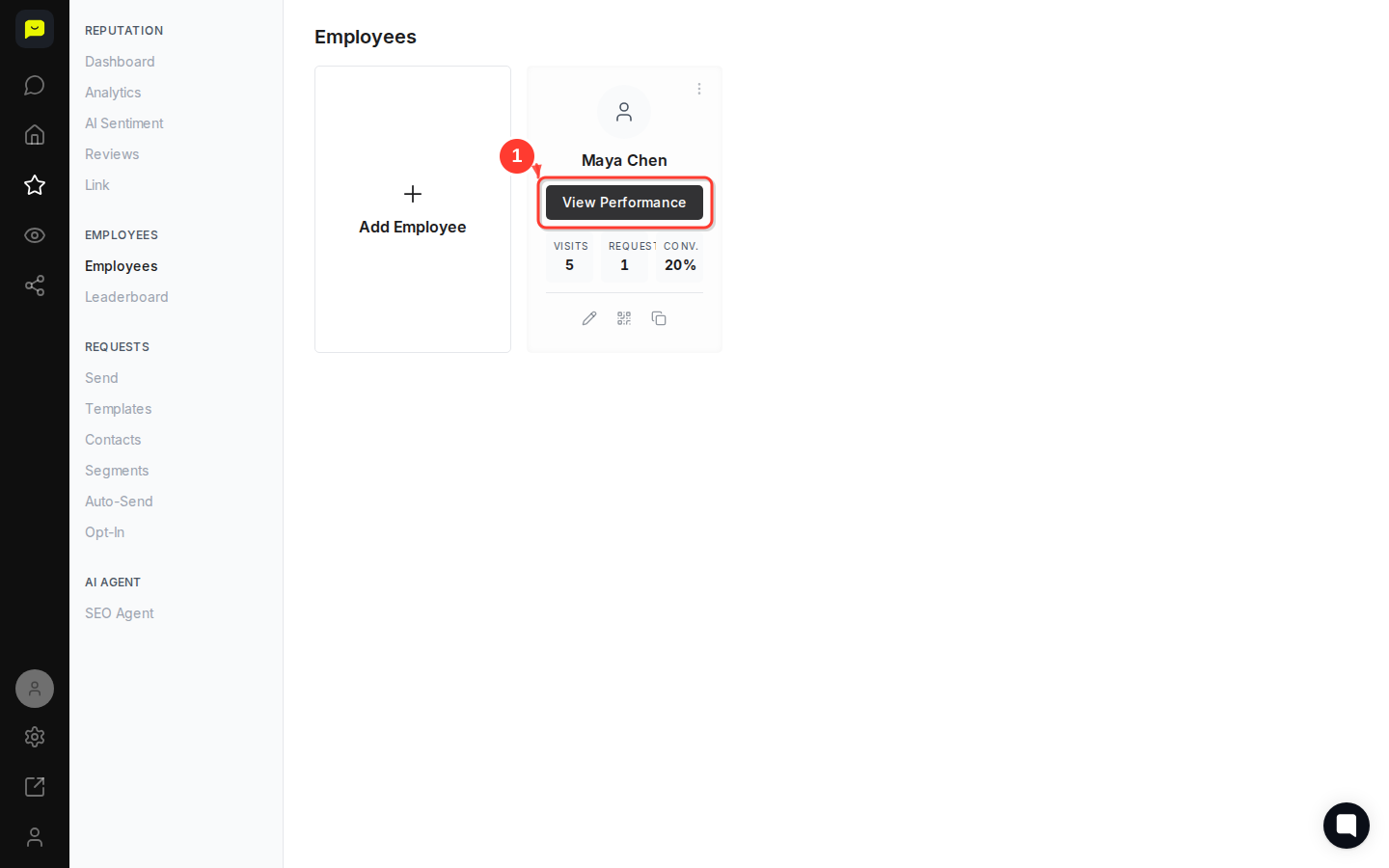
Click View Performance on Maya Chen's card. This opens her individual performance dashboard, with a breakdown of the reviews she's generated, her request conversion rate, and other metrics tied specifically to her activity.
Checking this data regularly helps you identify your strongest performers, spot team members who may need extra support, and decide where to focus your review-generation efforts.
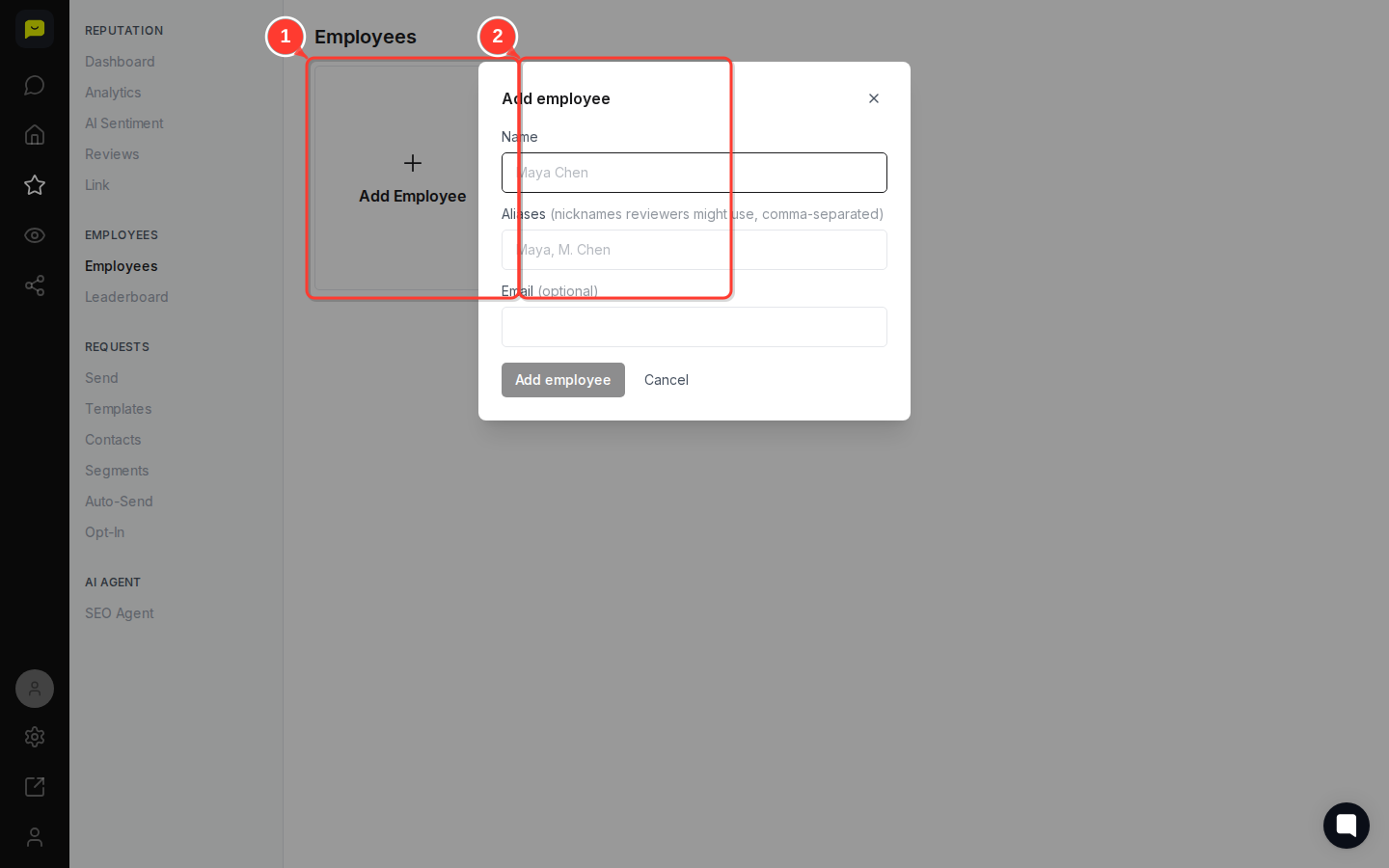
To track performance across your whole team, click the Add Employee button in the top-right corner of the Employees page. Enter the employee's details to create their profile and generate a personalized review link for them.
The more employees you add, the more useful your performance data becomes, and the easier it is to run friendly internal competitions using the Leaderboard.
In the left sidebar under the Employees section, click Leaderboard. This view ranks all your employees by review performance, giving you a quick summary of who's leading and who might need a nudge.
The Leaderboard works well as a motivational tool. Share it in a team meeting or use it to celebrate wins with your staff.

Now that you're tracking performance by employee, here are a few related features worth exploring:
How to send your first review request — Learn how to manually request reviews and get your team started.
How to set up Auto-Send for review requests — Automate review requests so no customer interaction goes untracked.
How to reply to customer reviews — Close the loop by responding to reviews your employees helped generate.
