Your review widgets are how customers see your reviews on your website. Getting the design right means your widgets fit your brand and make a good impression on visitors.
Navigate to the Widgets page by going to Visibility → Widgets in the left-hand navigation. You'll find four widget types as tabs at the top of the page: Carousel, Grid, Pop-up and Badge.
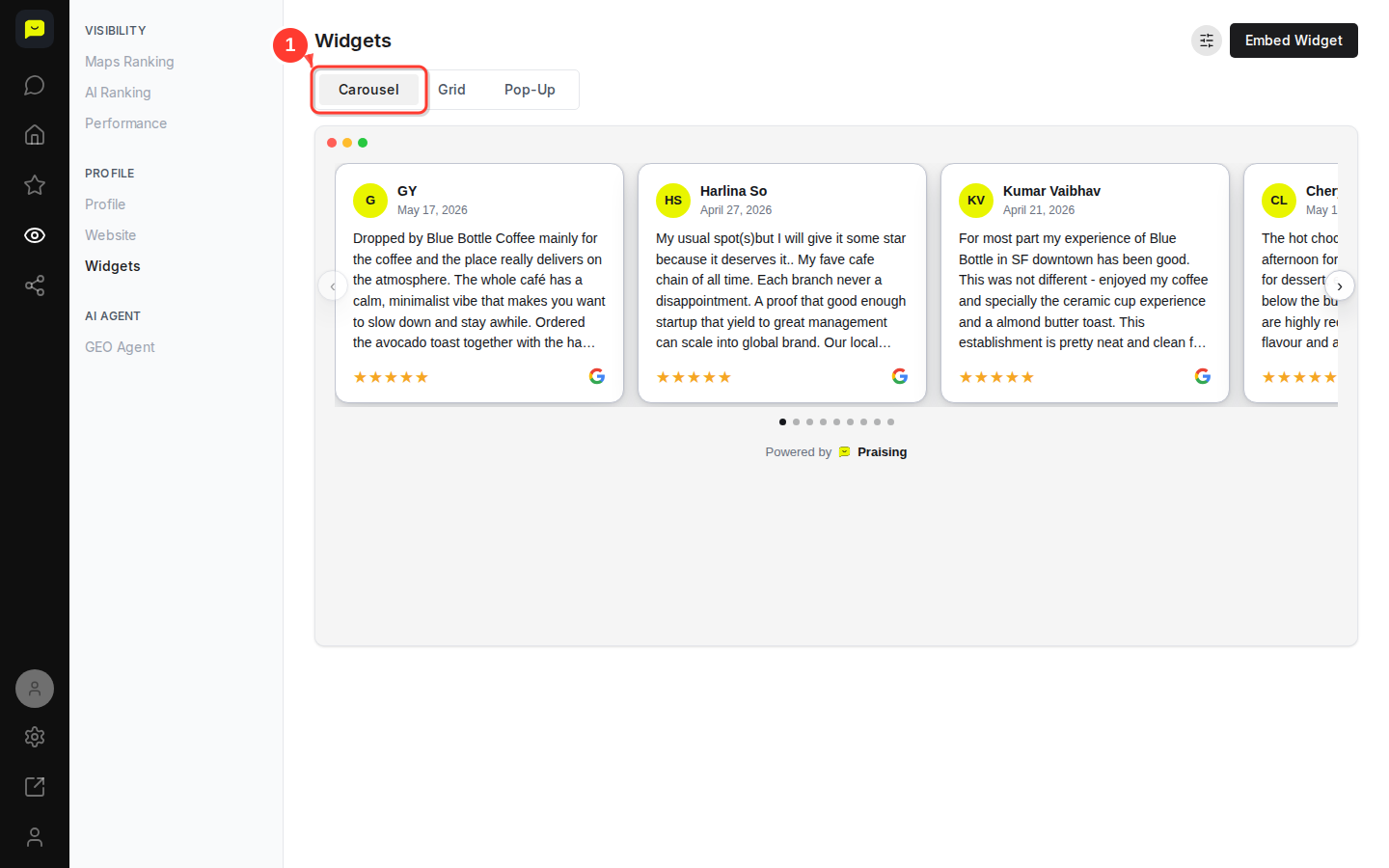
Start with the Carousel tab (selected by default) to see your reviews in a scrolling format. This works well when you want to display multiple reviews without taking up much space.
Click the Grid tab to see how your reviews look in a structured grid format.
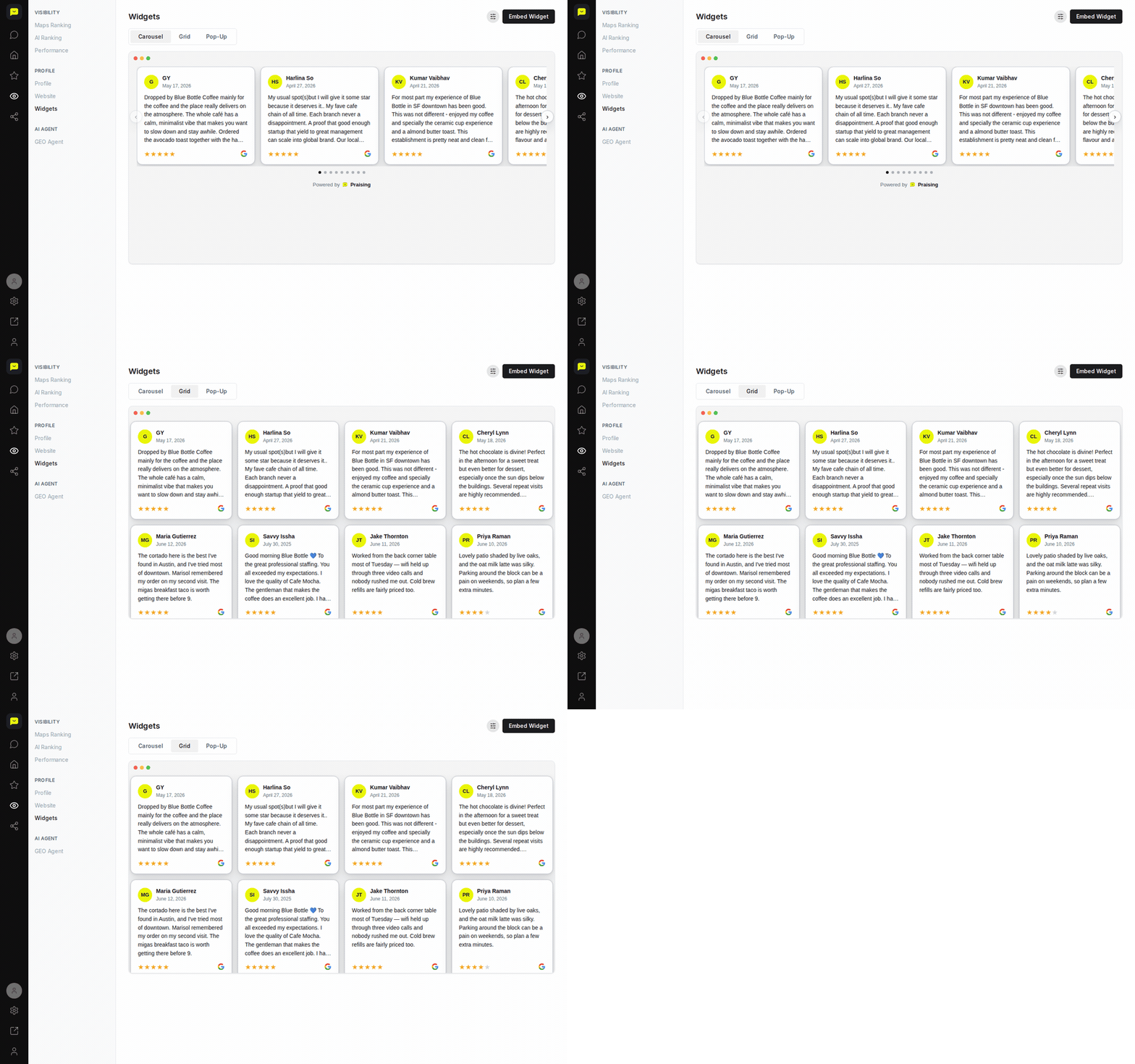
The Grid layout arranges reviews in rows and columns, which suits dedicated review sections where you want to show several reviews at once.
Click the Pop-up tab to preview the pop-up widget option.
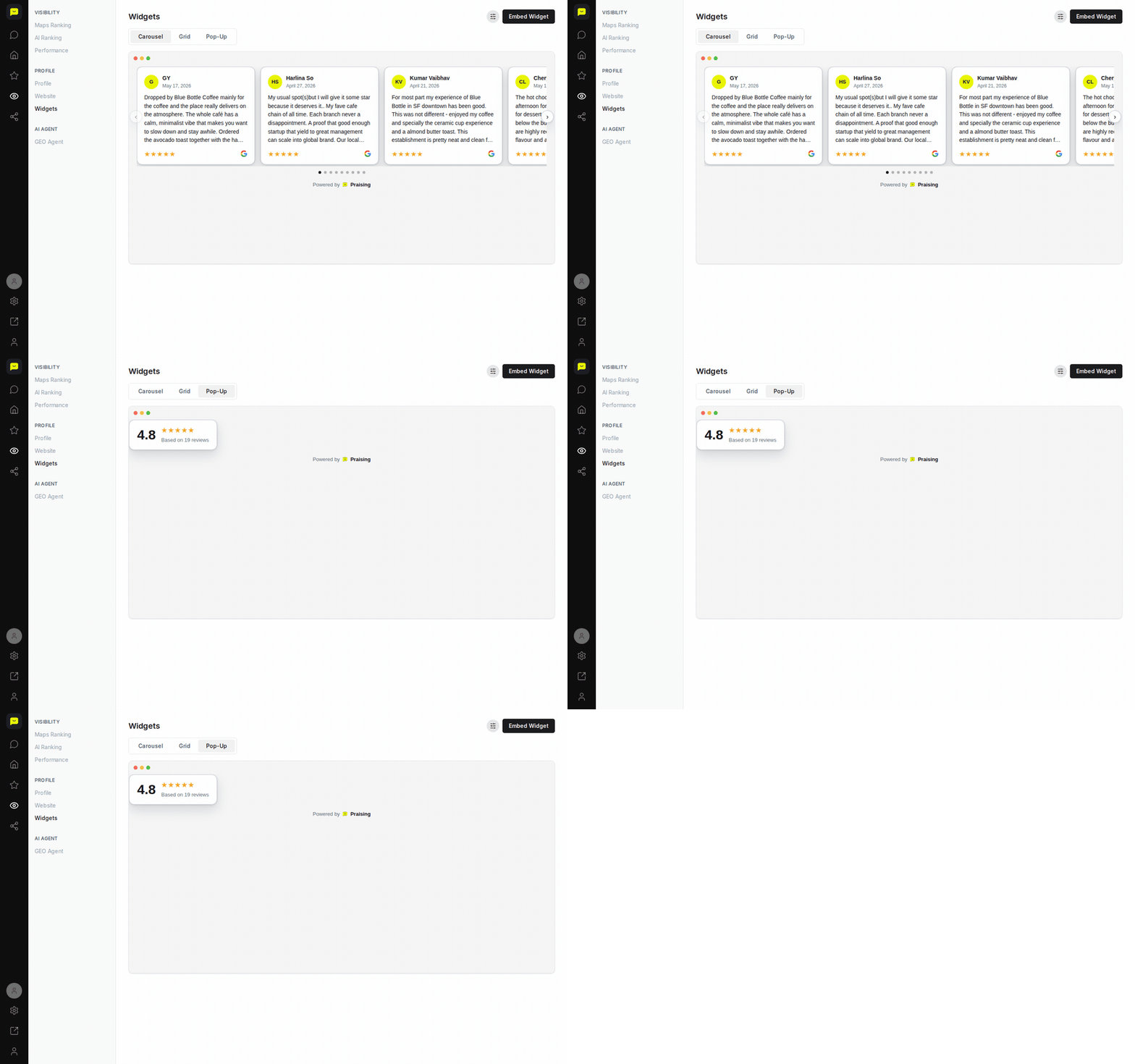
The pop-up widget shows one review at a time in a small card and moves to the next review every 5 seconds. On your site it appears where you paste the code, rather than floating over the page.
Click the round filter button next to Embed Widget, at the top right of the page. It opens the Widget Filters panel.
There you choose the Review Type (All, Public or Video Testimonials), a minimum star rating, which review sites to include, a Light or Dark theme and how many reviews show. You can also add a Leave a Review Button, switch Show Widget off to hide the widget, and on Pro remove the Praising branding with Disable Branding. Click Save when you're done.
Once you're happy with your widget design, click the Embed Widget button to get your embed code.
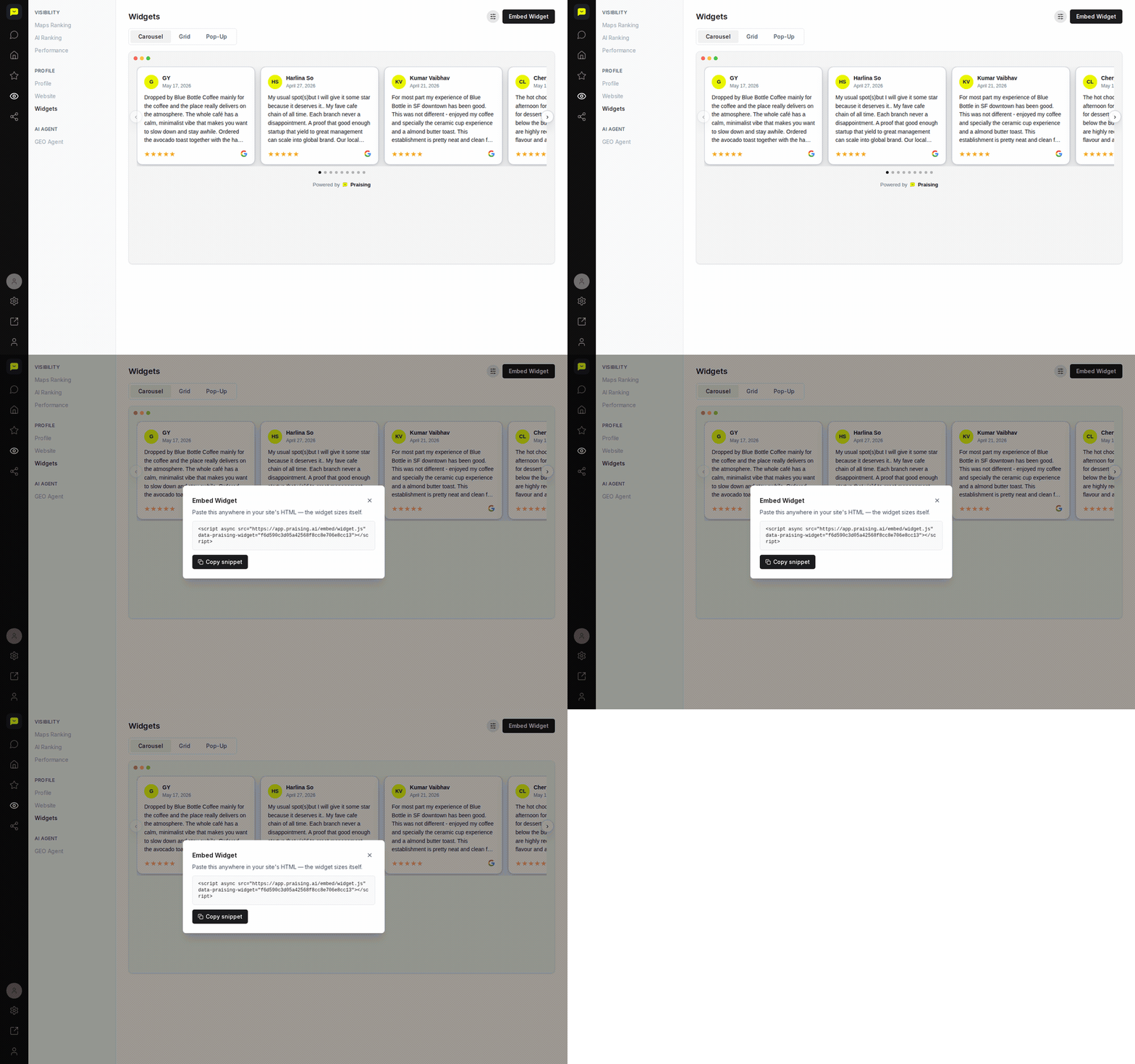
This gives you the code you'll need to add the widget to your website. Your settings are saved with the widget, so changes you make later show up on your site without new code.

After customizing your widget design, you can:
Copy the embed code and add it to your website
Use a different widget type on different pages
Set up automated review collection to keep your widgets populated with fresh content
You can return to Visibility → Widgets at any time to change which reviews your widgets show or switch their theme.
Open widgets →