While it's switched on, the SEO Agent drafts a reply to each new review, in the tone, length and language you set. Instead of staring at a blank reply box, you get a draft to approve, edit or discard. Nothing is posted until you approve it, and once your Google listing is connected with Google Login, an approved reply to a Google review posts straight to Google.
A paid Praising.ai plan (Core, Growth or Pro)
A Google listing connected under Settings → Integrations: the agent can't be switched on without one
An owner or admin to set it up and switch it on in the Setup tab
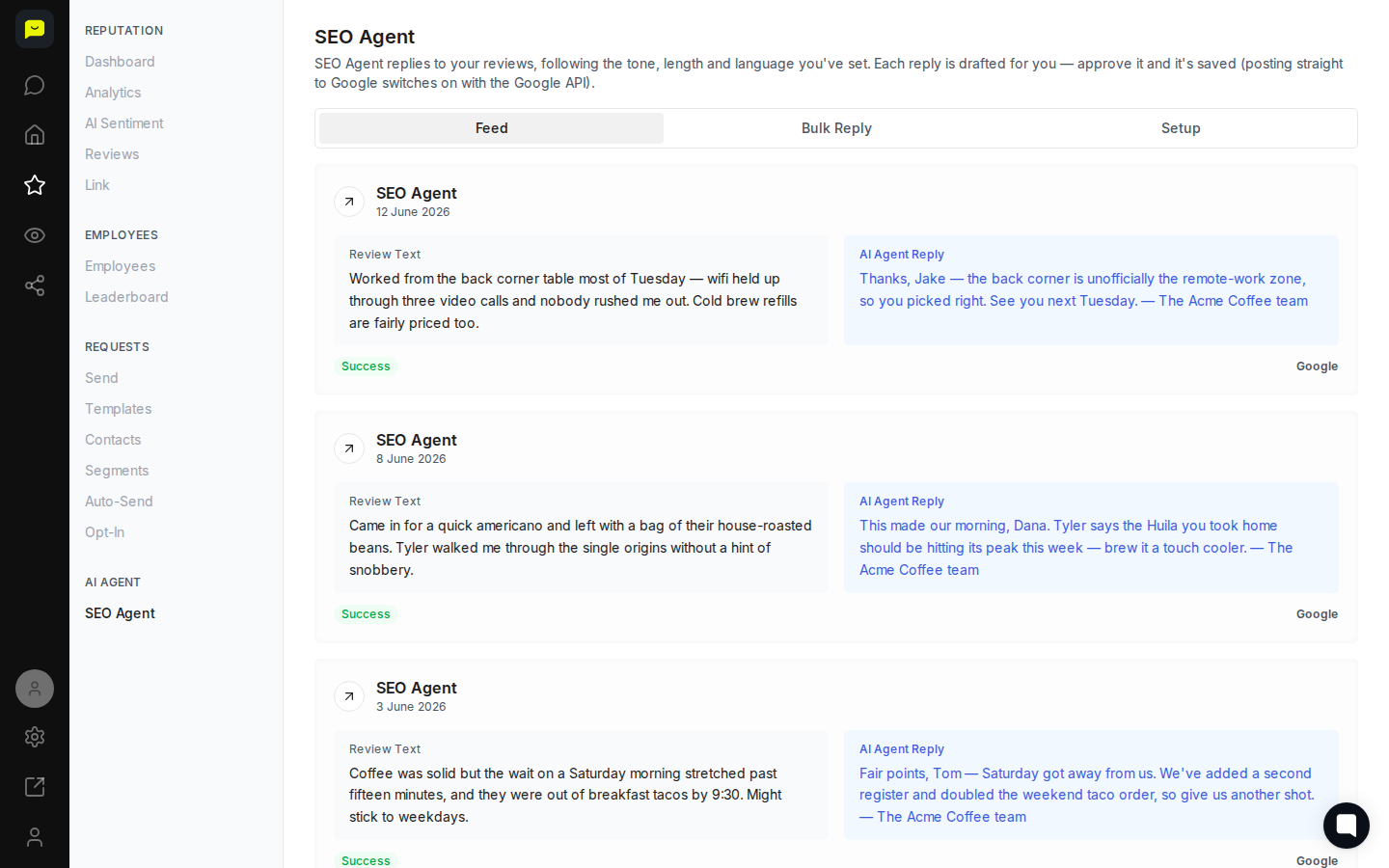
Navigate to Reputation → SEO Agent in the left sidebar. The page opens on the Feed tab. At the top are the replies waiting for your OK, each showing the review next to the AI's suggested reply. Below them are the replies you've already made.
A waiting card has Approve (or Approve and post when Google is connected), Edit and Discard. Once a reply is made, its card shows a badge: Success when the reply is on the review site, or Saved here only when it is saved in Praising but not posted.
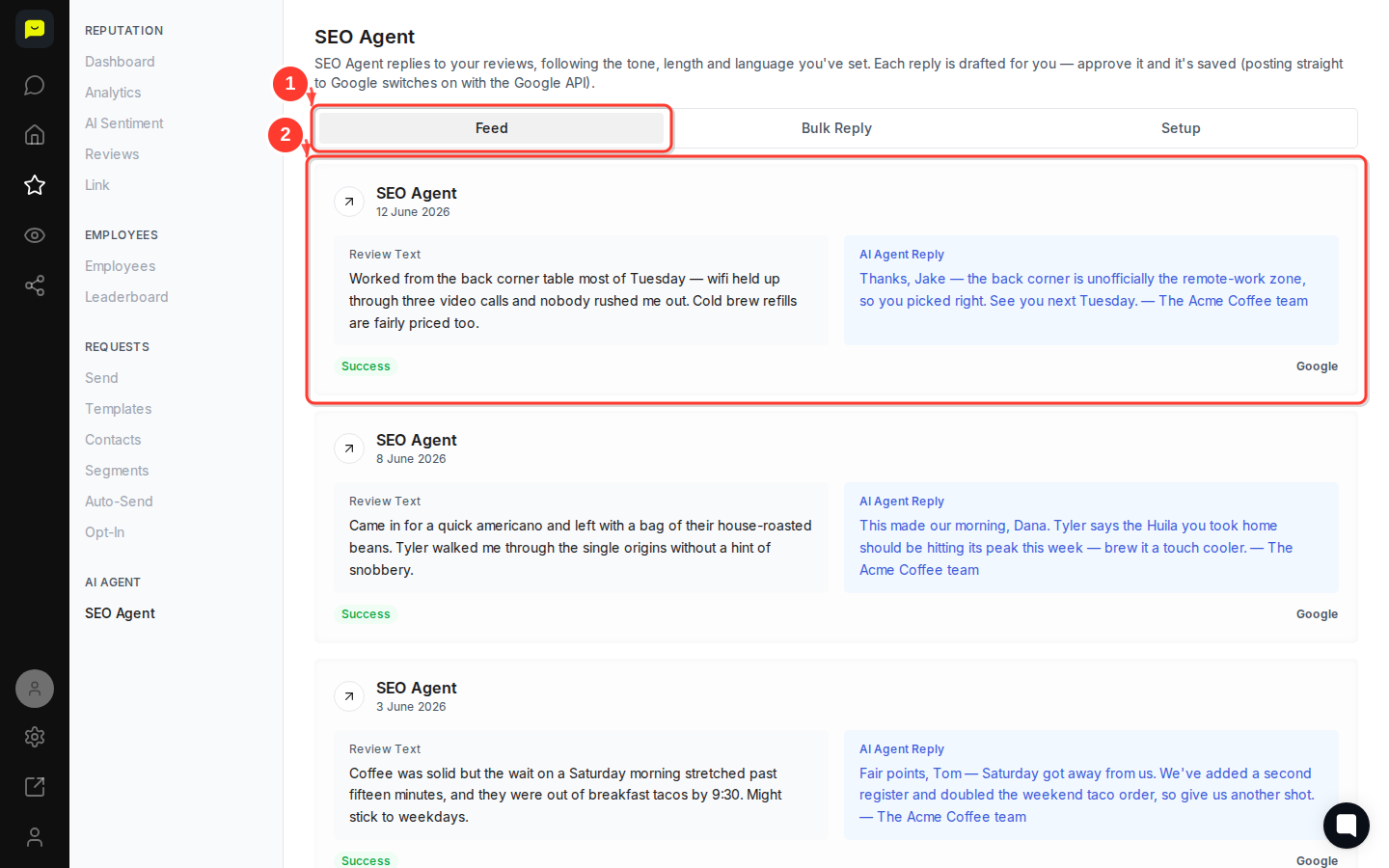
Notice how the SEO Agent tailors each reply to the individual reviewer. For a positive review from Jake about working from the corner table, the reply references that specific detail ("the back corner is unofficially the remote-work zone") and closes warmly. For a critical review from Tom about slow Saturday service, the reply acknowledges the issue directly and explains what's been fixed.
This specificity is intentional: drafts pick up details from the review itself, so replies read as personal rather than canned. Any instructions you add in Setup, such as naming your city or a service, go into every draft.
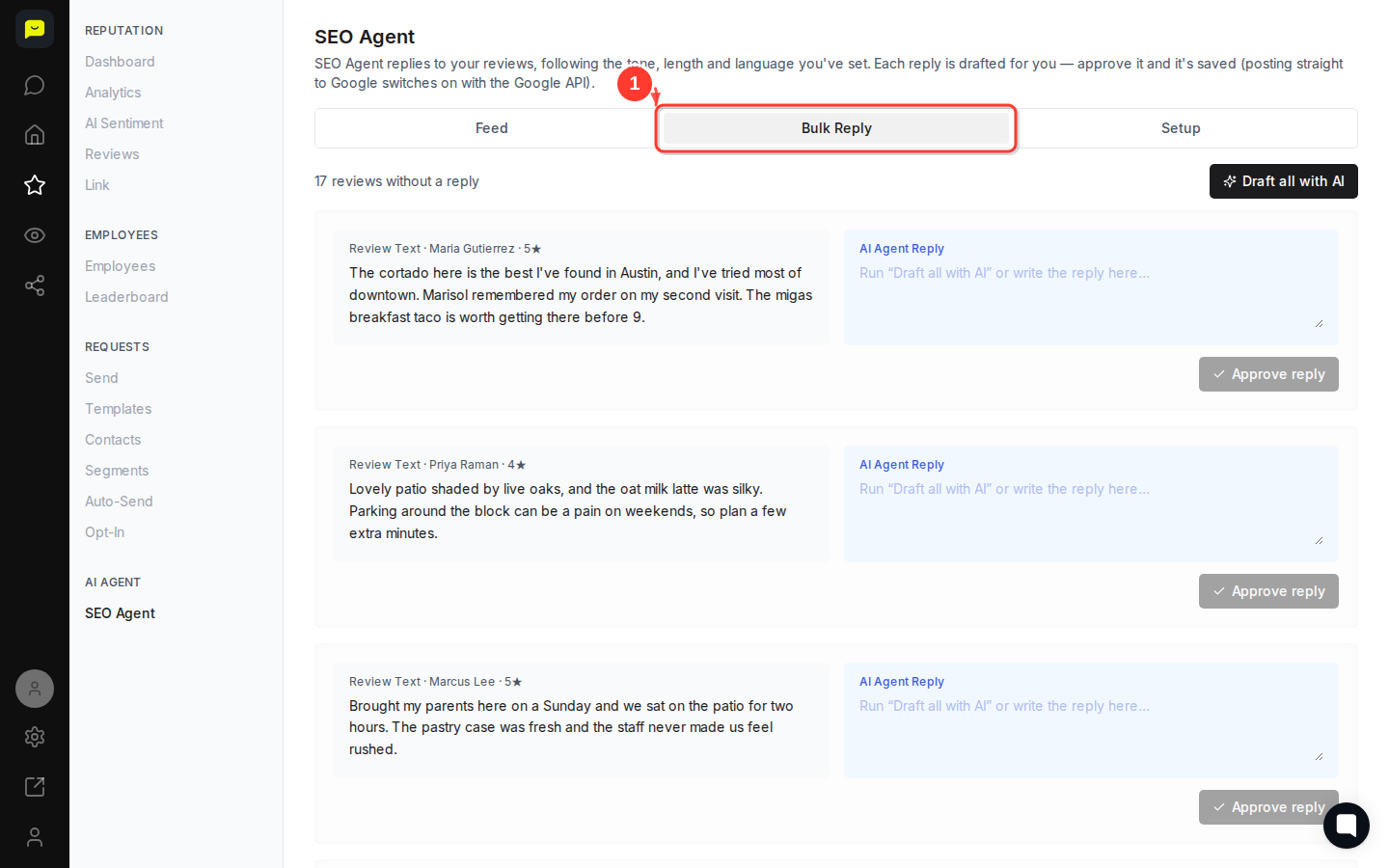
Click the Bulk Reply tab at the top of the page. It lists your reviews without a reply that the agent hasn't drafted, such as the ones you had before switching it on. Click Draft all with AI to draft up to 10 at a time, then check each draft and click Approve reply on it.
Bulk Reply is particularly useful when you first switch the agent on, because the agent drafts only the reviews that arrive after that.
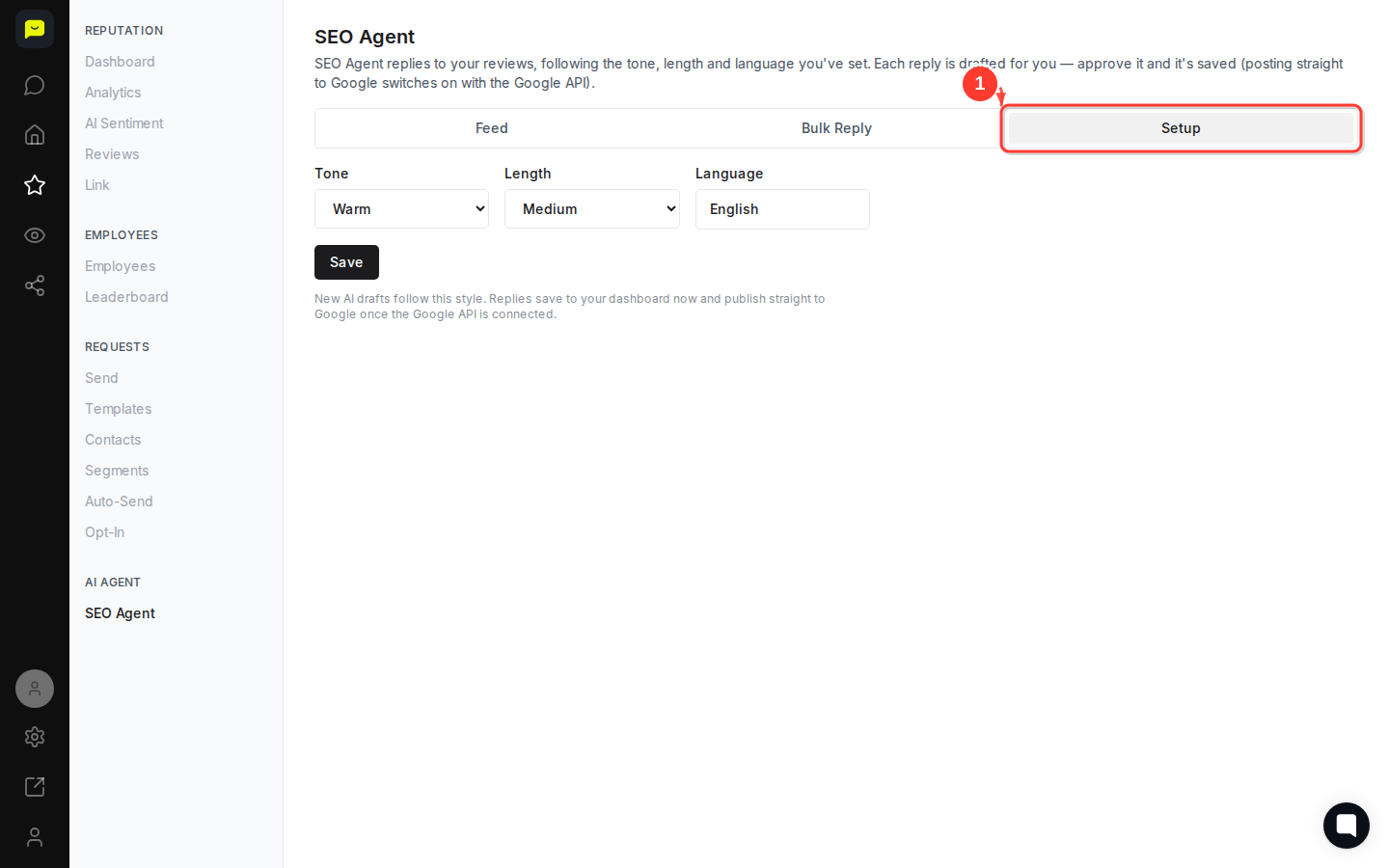
Click the Setup tab to control how the SEO Agent writes replies. This is where you define the tone (warm, professional or apologetic), the reply length (short, medium or long), and the language. Reviews of 1 to 3 stars can have a tone and instructions of their own.
To start the agent, turn on Enable SEO Agent and click Save. Getting Setup right first means drafts match your style from day one, so they need less editing.

To post approved replies straight to Google, connect your listing with Google Login under Settings → Integrations; an owner or admin signs in with Google. Then Approve and post sends a reply to Google, with no copying, pasting or logging into Google Business Profile.
Until then, Approve copies the reply and opens the review site so you can paste it, and you click I posted it once it's there. Replies to other sites, like Trustpilot, always work that way: Praising publishes replies only to Google.
How to use the AI Agent: ask questions about your reviews and ratings in a chat
How to reply to customer reviews: handle replies yourself when you want full control
How AI Sentiment reads your reviews: get a summary of what customers praise and what to improve