Stay in the loop on everything that matters for your business, from new Google reviews to private customer feedback. Praising.ai's notification settings let you choose which alerts you receive and where they land, so you never miss an important customer interaction.
In the left sidebar, click Settings to expand the settings menu. Under the Location Settings section, click Notifications. The Notifications page loads at /dashboard/settings/notifications with two main sections: your notification email address at the top, followed by a list of individual notification toggles below.
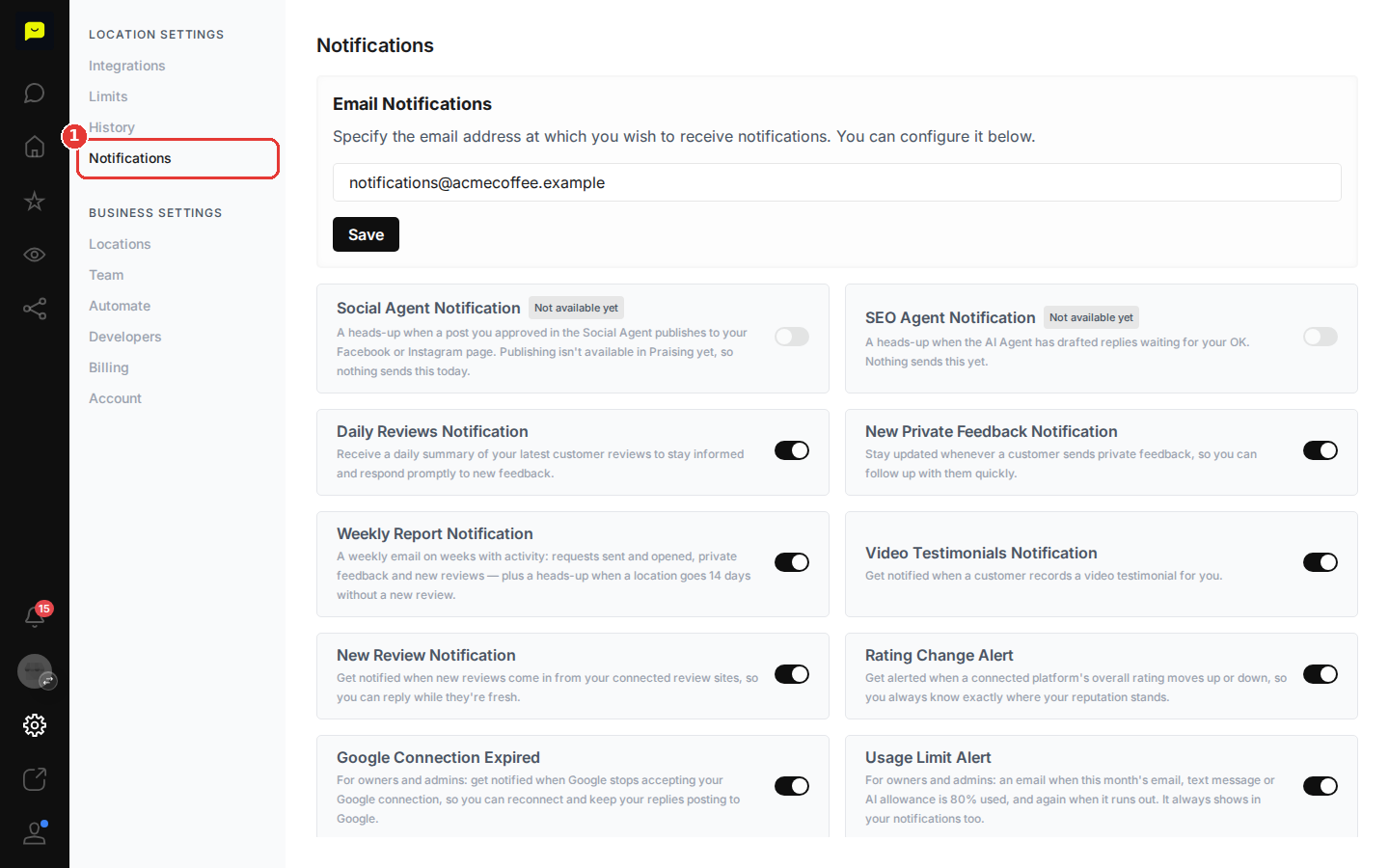
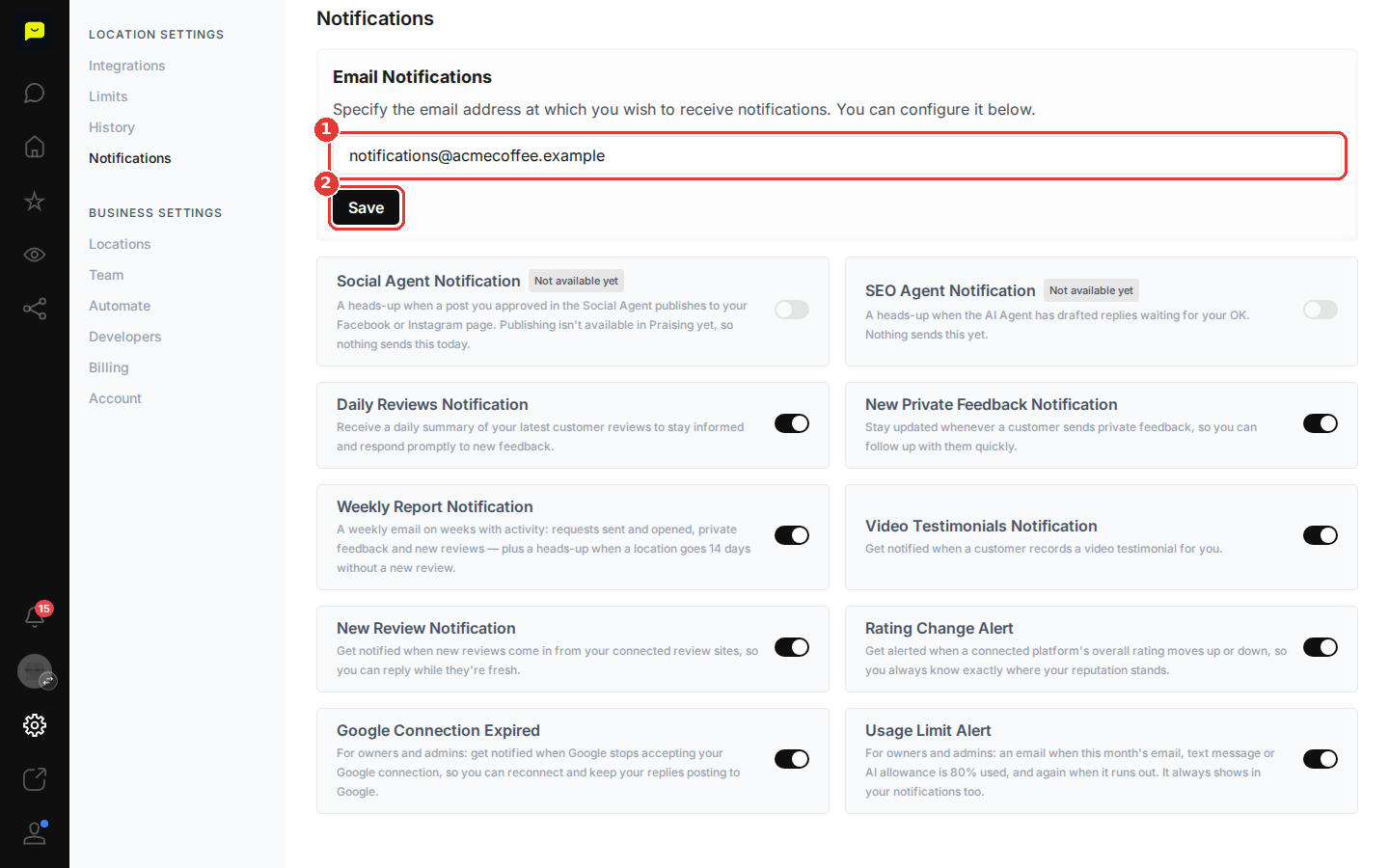
In the Email Notifications section, review the address in the Enter your notification email field. When an address is set, your business's alert emails go there once instead of to each teammate's own email. In-app alerts and the weekly report still reach each person.
Only an owner or admin can change it. To update it, click into the field, clear the existing address, and type your preferred email. Once you've made a change, the Save button becomes active. Click Save to confirm. Keeping this address current means alerts reach the right inbox, whether that's yours or a shared team mailbox.

Scroll down past the email field to see the full list of notification types. Each one has a toggle on the right. Here's what each notification covers:
Notification | What It Does |
Social Agent Notification | Not available yet. It's meant for when a post you approved in the Social Agent publishes to your Facebook or Instagram page |
SEO Agent Notification | Not available yet. It's meant for when the AI Agent has drafted replies waiting for your OK |
Daily Reviews Notification | Adds a once-a-day summary of your latest reviews to your in-app notifications |
New Private Feedback Notification | Notifies you whenever a customer sends private feedback, so you can follow up with them quickly |
Weekly Report Notification | Emails you a weekly report on Mondays, in weeks with activity: requests sent, review links opened, private feedback and new reviews, plus a heads-up when a location goes 14 days without a new review |
Video Testimonials Notification | Notifies you whenever a customer sends a video testimonial |
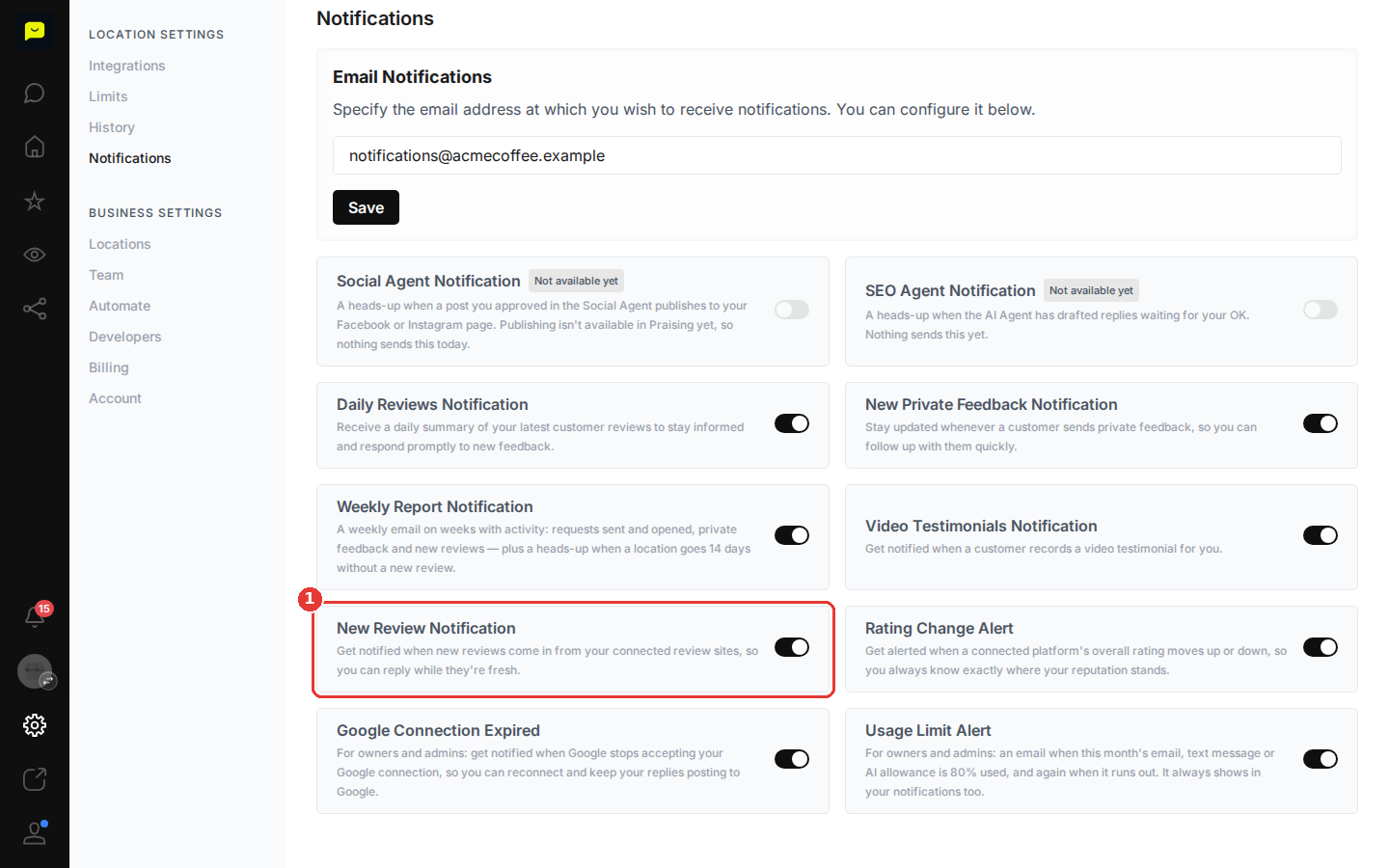
New Review Notification | Emails you when Praising picks up new Google or Trustpilot reviews, with an in-app alert too. Reviews are checked once a day |
Google Connection Expired | Notifies you when your Google connection has expired so you can reconnect and keep Google features working correctly |
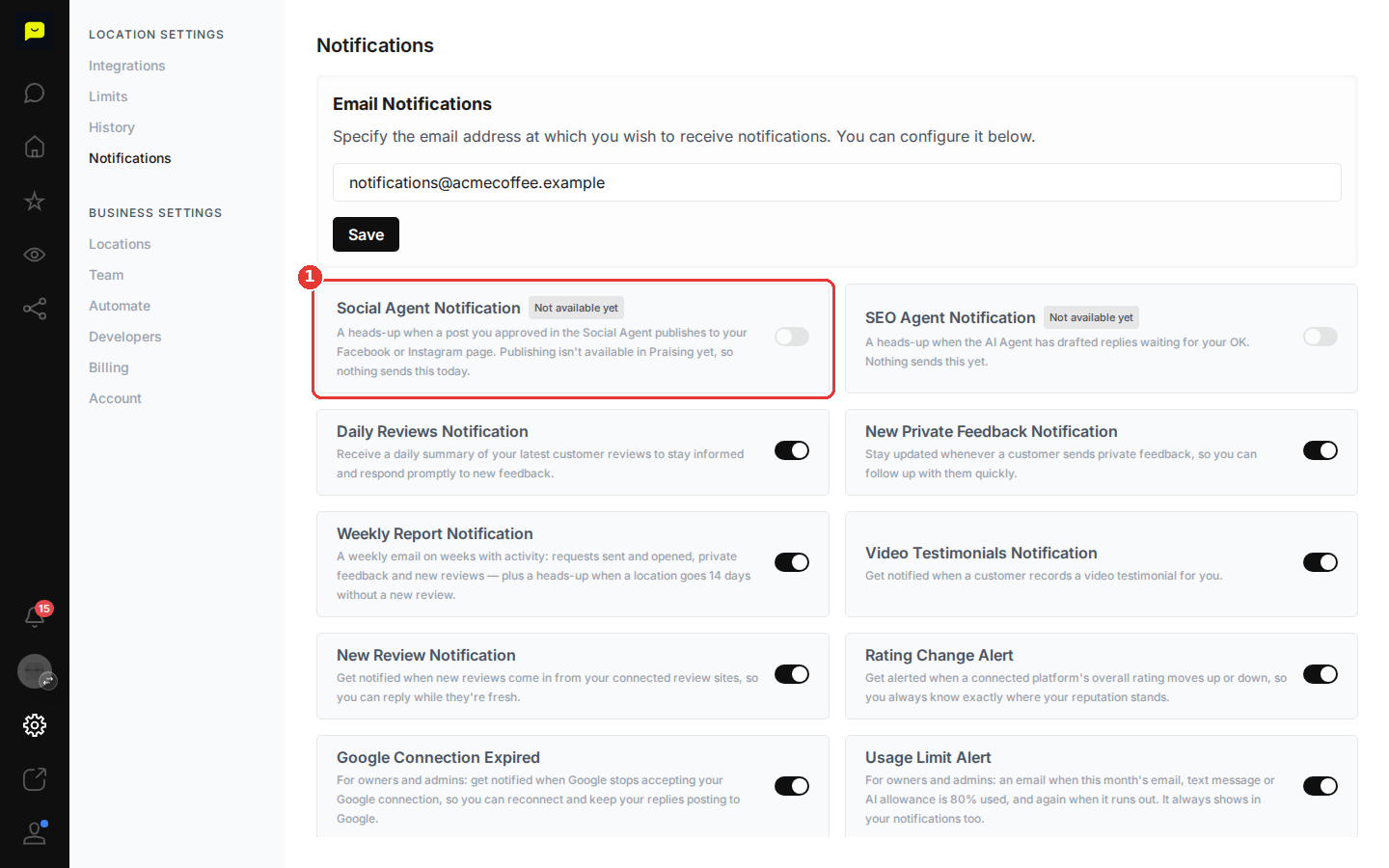
Click any active toggle to switch it on or off. Notifications marked Not available yet are disabled at the platform level and cannot be toggled until they launch.
If you want to be notified whenever a video testimonial comes in, for example, click the toggle next to Video Testimonials Notification to turn it on. Changes to active toggles take effect immediately, with no Save button required.
Scroll through the full list one more time to make sure your toggle selections match how closely you want to track activity. If you're a busy operator, New Private Feedback Notification tells you the moment a customer writes to you privately, so you can follow up while it's fresh. If you want to hear about every new Google or Trustpilot review, turn on New Review Notification so you can respond quickly.
Now that your notifications are configured, here are a few related articles to help you get more from Praising.ai:
How to reply to customer reviews: Learn how to respond to the Google reviews you'll now be notified about
How the SEO Agent works: Set the tone and instructions your SEO Agent's drafts follow
How to update your account settings: Find the Team page, where you invite teammates who can then pick their own notifications
