
The AI Agent is your always-on assistant inside Praising.ai. It can help you make sense of your reputation data, generate content ideas, and find your way around the platform — all without leaving your dashboard.
Getting Started
Step 1: Open the AI Agent
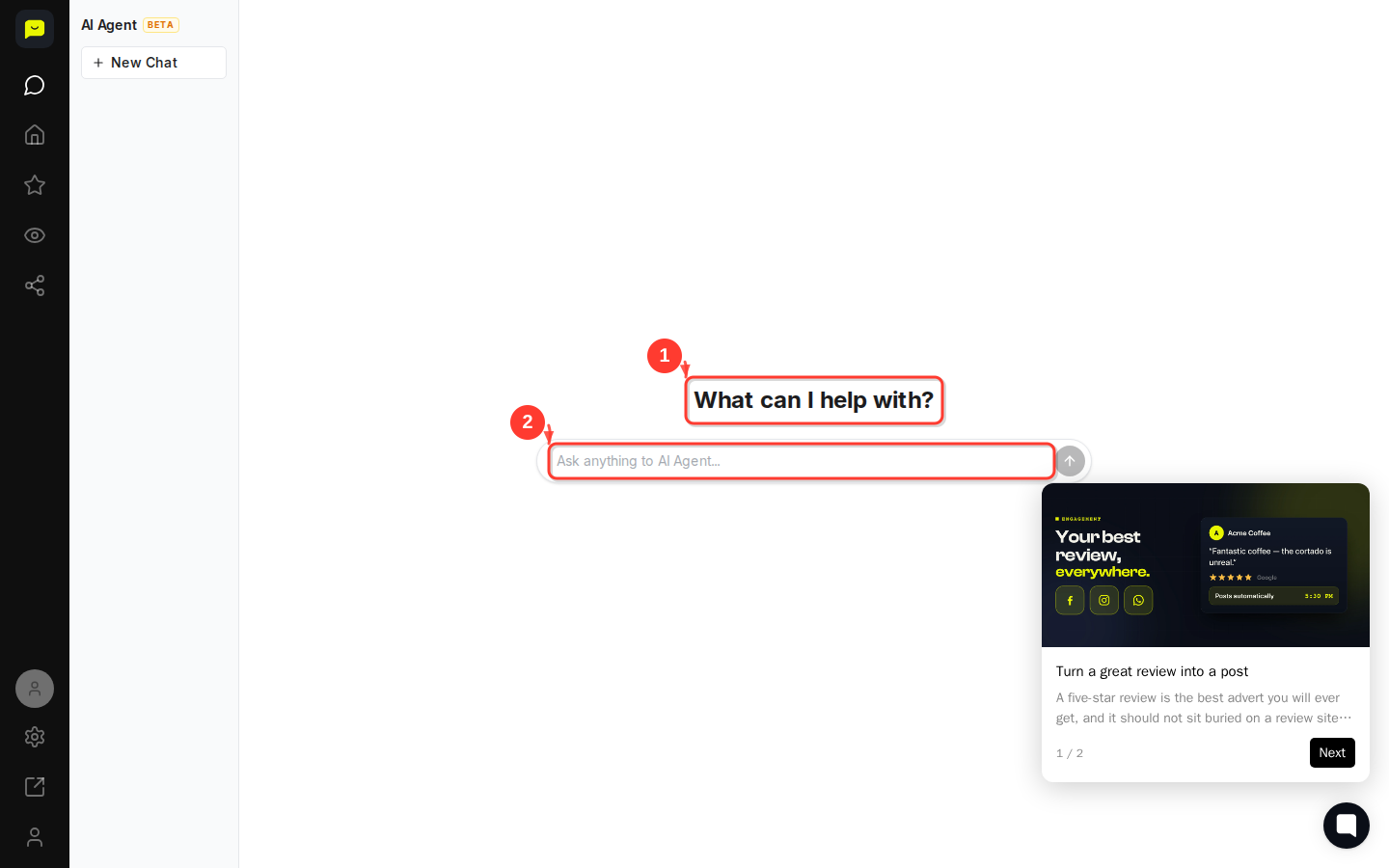
Navigate to https://app.praising.ai/dashboard/chat. The page loads with a focused interface headed "What can I help with?" — that's where every conversation starts. You'll notice the sidebar labels this section AI Agent Beta, which means new capabilities are still being added.
Step 2: Start a new conversation
In the left-hand panel, click the New Chat button (look for the icon next to the label). This clears the chat window and gives you a fresh context, which is useful when you want to switch topics without your previous conversation affecting the AI's responses. Each chat runs as its own independent session, so your threads stay organised.
Step 3: Type your question or request
Click inside the "Ask anything to AI Agent..." text box and type your question or task. The Send button stays disabled until you start typing, so you can't accidentally submit an empty message. You can ask about your business reputation, review strategy, content creation, or how specific Praising.ai features work.
Examples of what to ask:
"Summarise my recent negative reviews and suggest a response strategy."
"Help me write a social post based on a five-star review."
"What should I do to improve my visibility score?"
Step 4: Explore suggested starting points
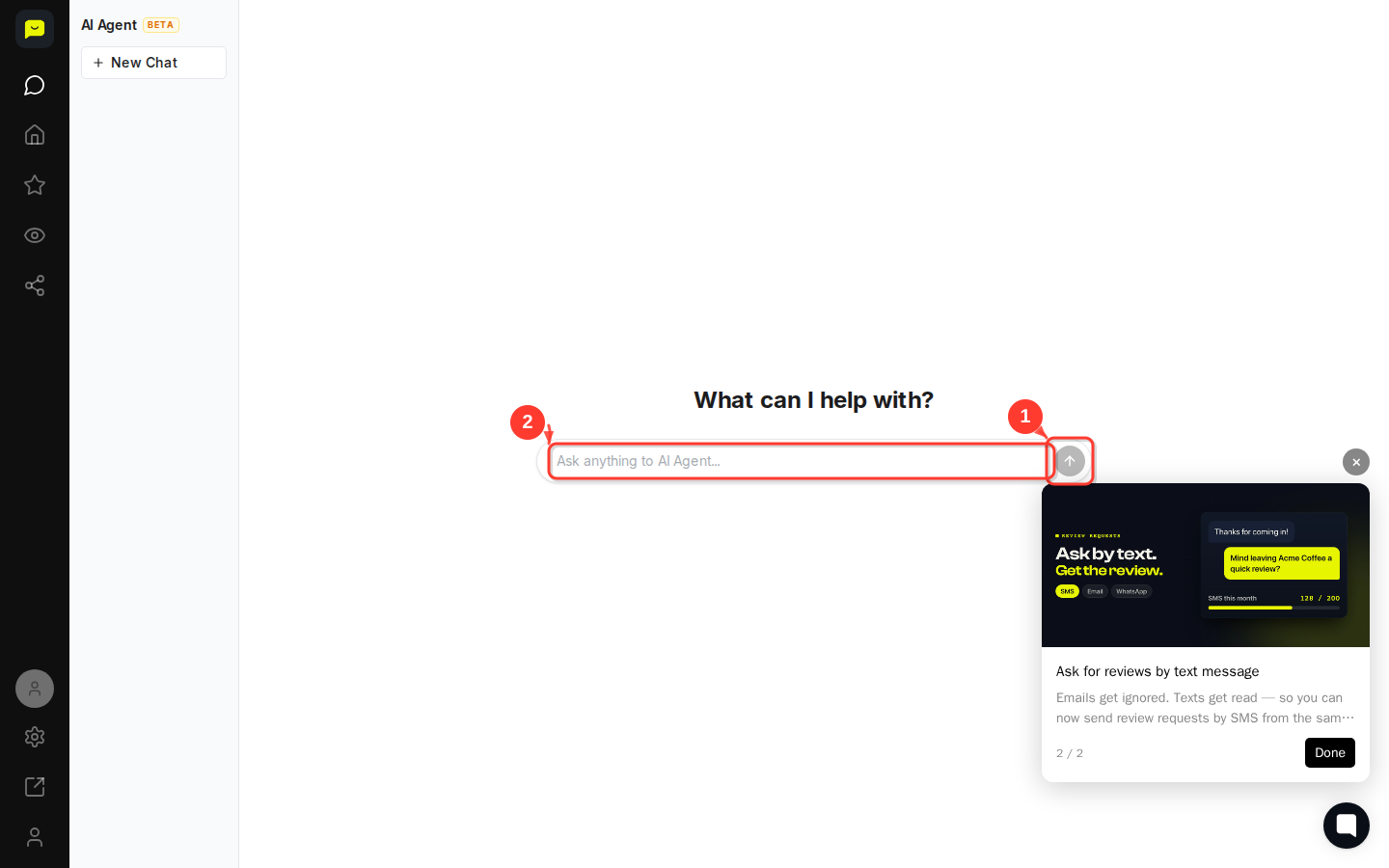
If you're not sure where to begin, the platform shows onboarding tips when you first land on the chat page. The current tip — "Turn a great review into a post" — walks you through taking a five-star review from the Engagement feed and publishing it to Facebook, Instagram, or WhatsApp. Click Next to cycle through additional suggestions (1 / 2 shown).

Step 5: Use the AI Agent alongside other features
The AI Agent works best when you pair it with the rest of your dashboard. After a conversation, head to Reputation, Engagement, or Visibility in the sidebar to act on the AI's suggestions. The sidebar also has quick links to Settings and your Account, so you can adjust preferences without losing your chat thread.
What's Next?
How to configure AI Agent response settings — Fine-tune how the AI Agent responds to fit your tone and business needs.
How to use the Social Agent to post automatically — Automate social posts directly from your review feed.
How the SEO Agent works — Discover how AI-driven SEO recommendations can strengthen your online presence.